




Uploading and Using User-defined Flows
To add your own custom flow:
1. On the top-right corner of the Data Flow Inventory page, click on the Upload button .
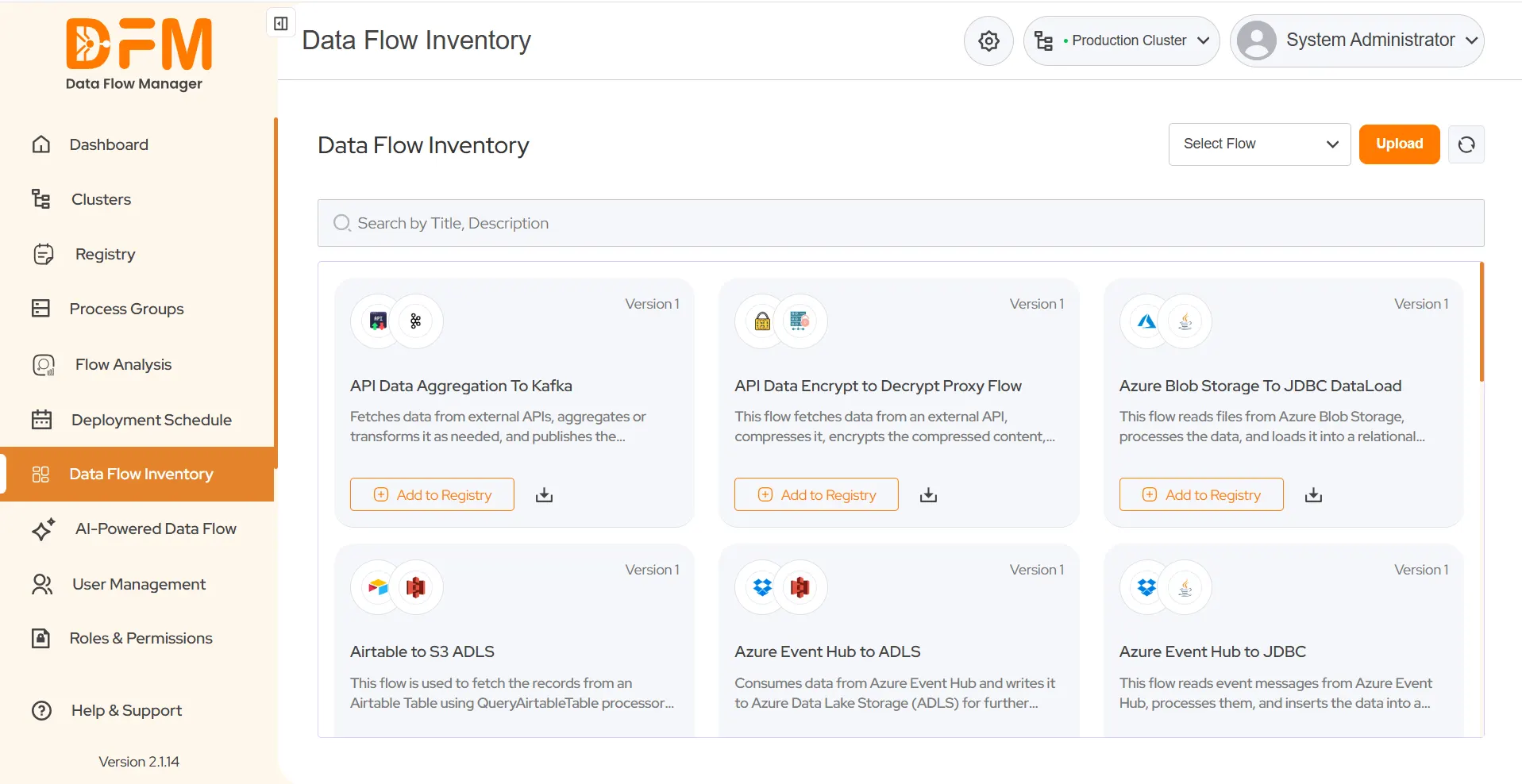
2. The Upload Flow modal appears.
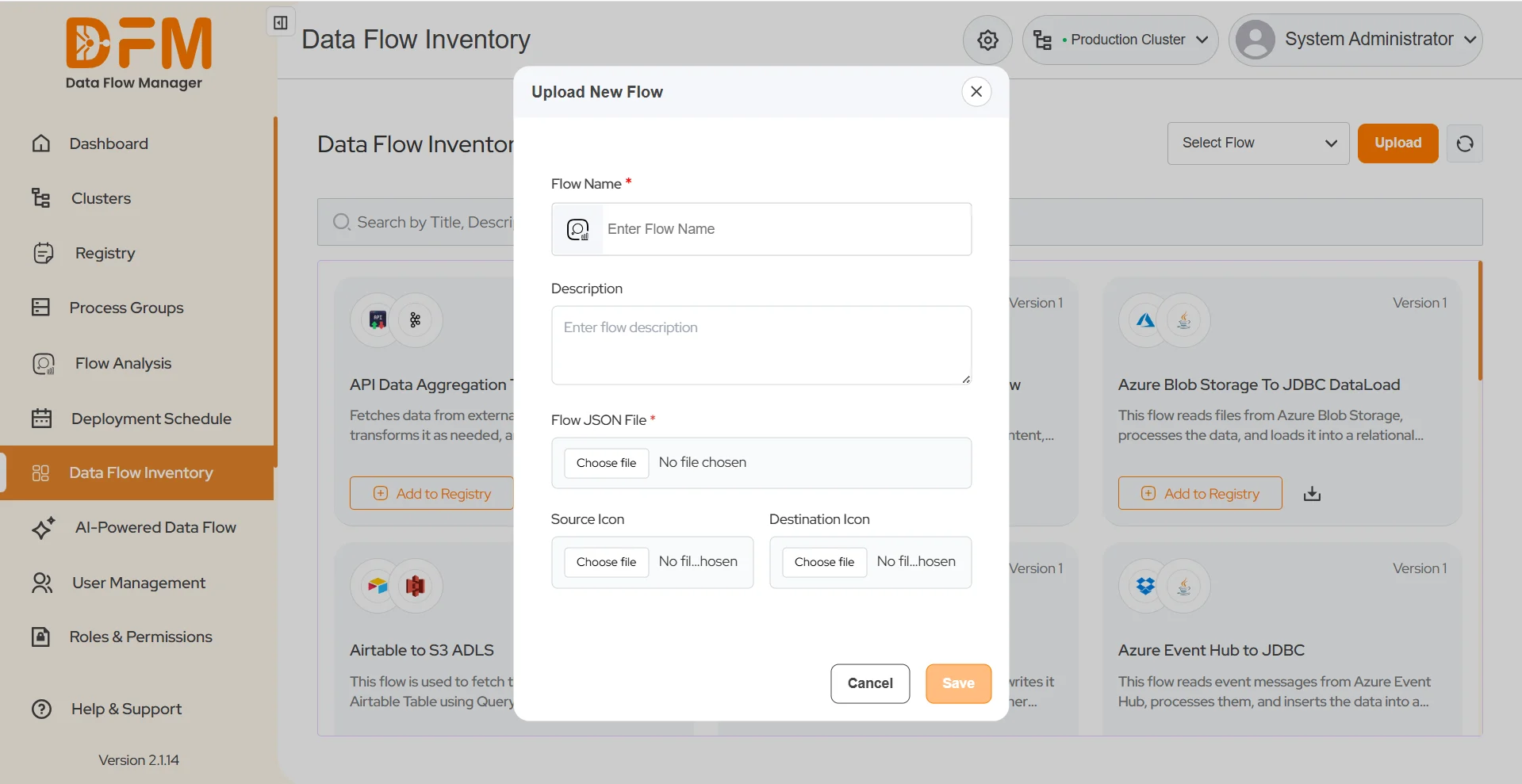
3. Provide the following details:
- Flow Name (required)
- Upload Flow JSON (required).
- Description (optional)
- Source Icon and Destination Icon (optional)
4. Click Save.
5. Once saved, your flow will appear under the User-defined Flows category.
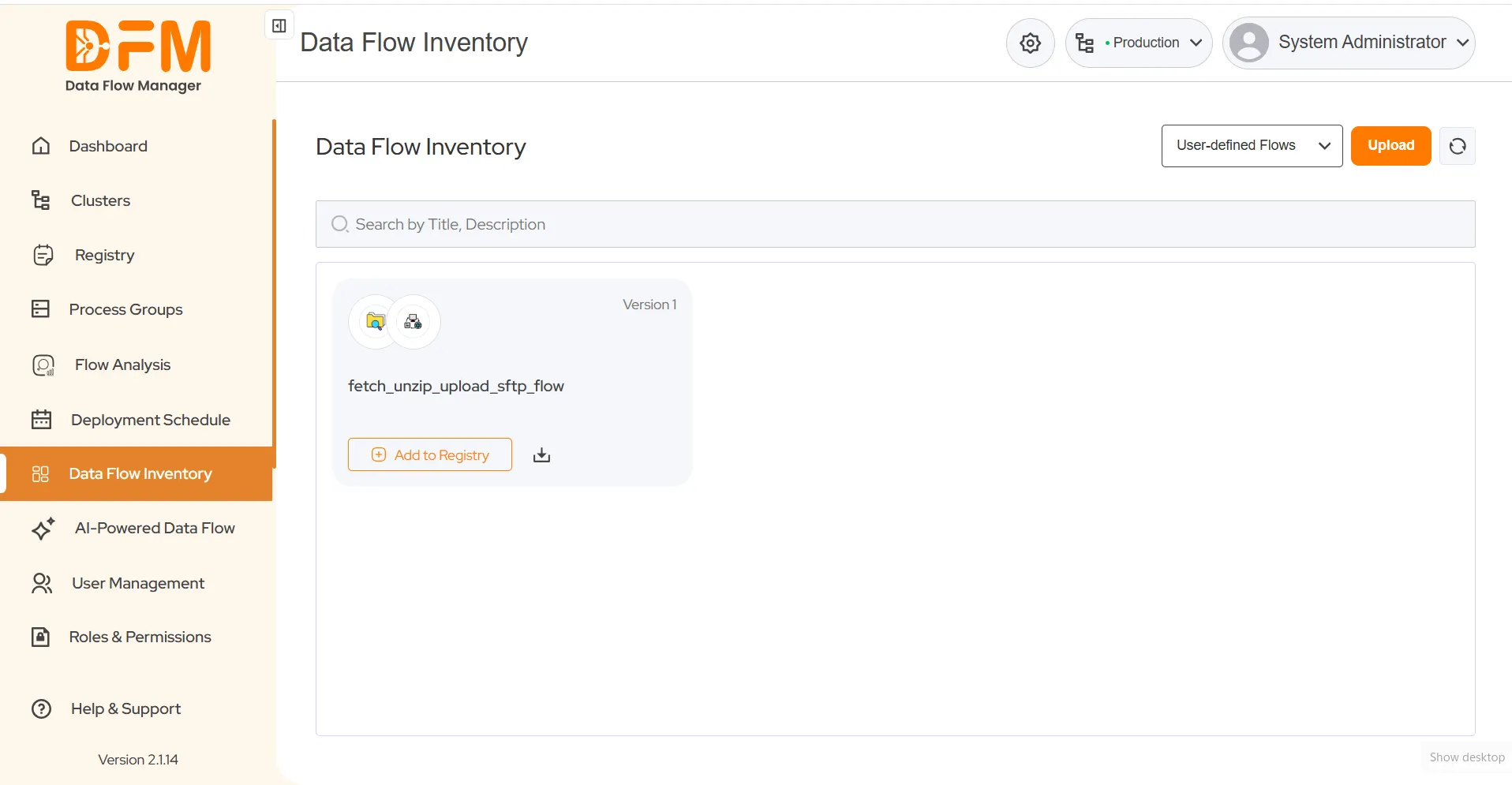
6. You can then follow the same process as Ready-made Flows to add the flow to the registry and deploy it to NiFi.
 1800 121 0218
  +1 (646) 203-1075
  +91 8527471031
 sales@ksolves.com