




Adding Registry from the Registry Modal
1. Open the Registry Modal
- From the Navigation Menu, select Registry.
- The Registry modal opens, listing all existing registries configured in DFM.
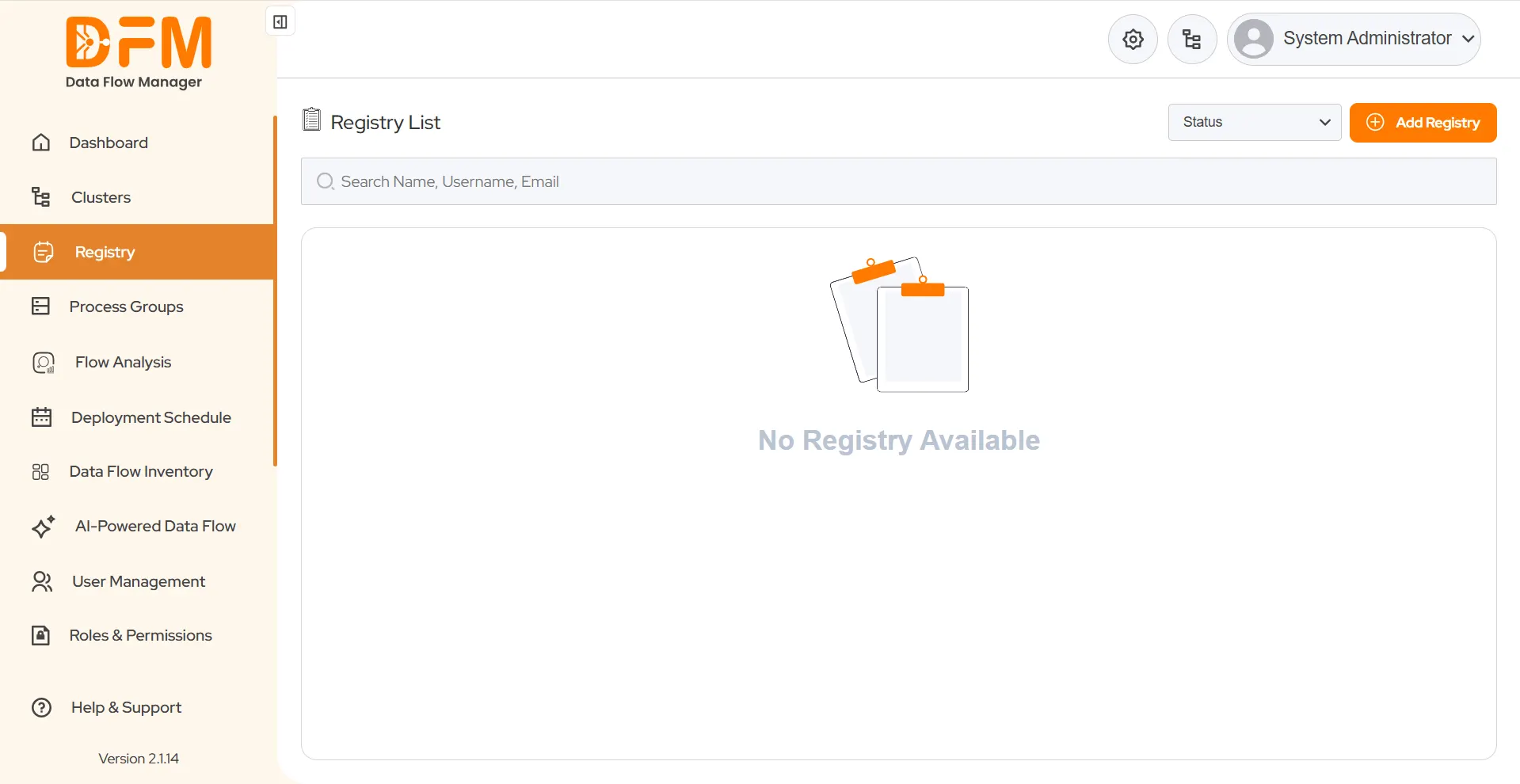
2. Add a New Registry
- Click Add Registry in the top-right corner.
- The Add Registry modal appears — this option allows adding authenticated registries only.
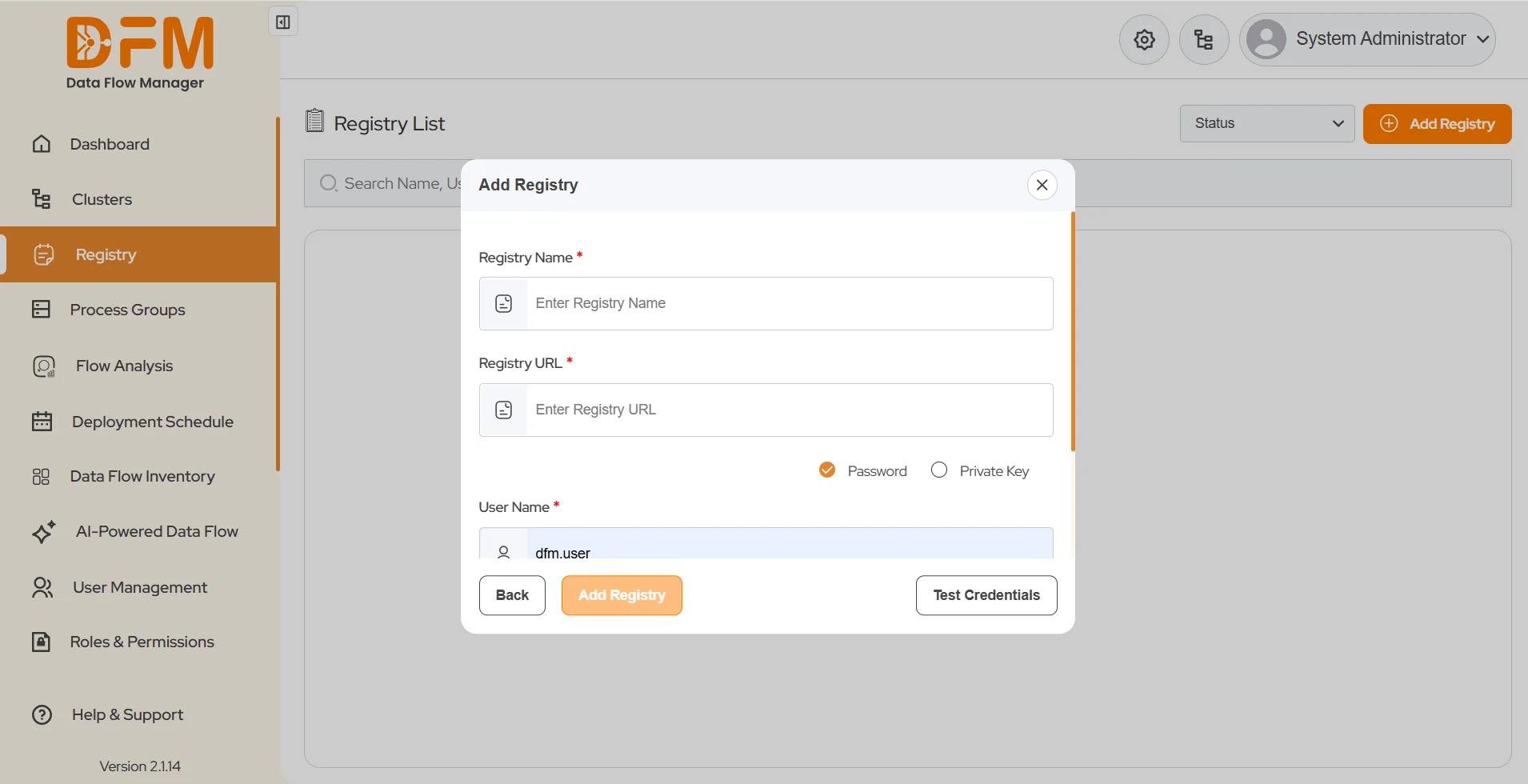
3. Provide Registry Details
- Registry Name: Enter a unique name for your registry.
- Registry URL: Enter the NiFi Registry endpoint (e.g., http://{REGISTRY_IP}:18080).
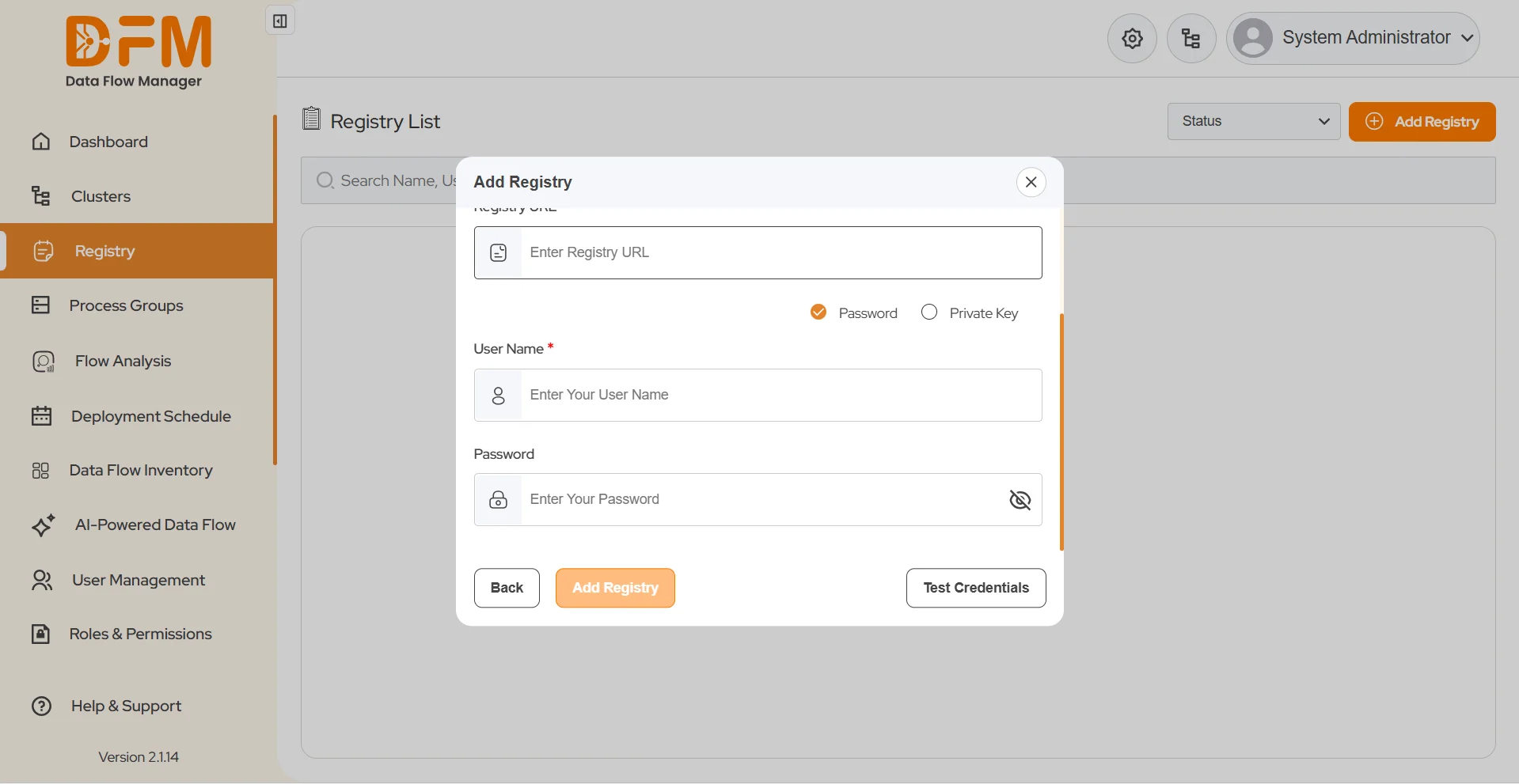
4. Select Authentication Method
Choose one of the authentication options:
- Password-based Authentication (default)
- Enter Username and Password.
- Click Test Credentials to verify.
- If successful, click Add Registry, registry will be added successfully.

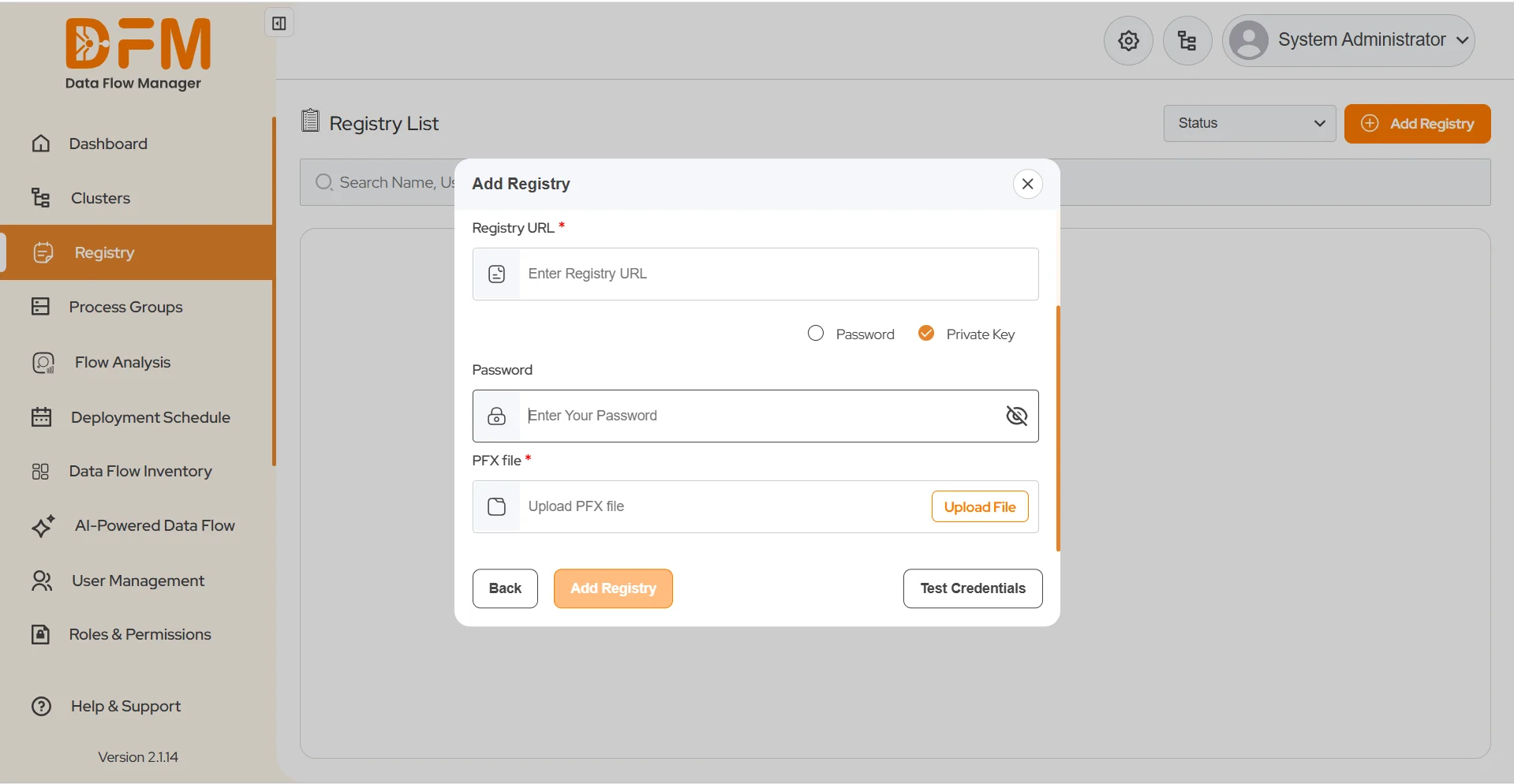
- Private Key Authentication

- Upload your Keystore file.
- Provide the Keystore password.
- Click Test Credentials.
- Once successful, click Add Registry registry will be added successfully.
 1800 121 0218
  +1 (646) 203-1075
  +91 8527471031
 sales@ksolves.com