




Adding Ready-made Flows to Registry
1. Select a flow you want to add (for example: Azure Blob Storage To JDBC DataLoad), then click Add to Registry.
2. The Add to Registry modal appears.
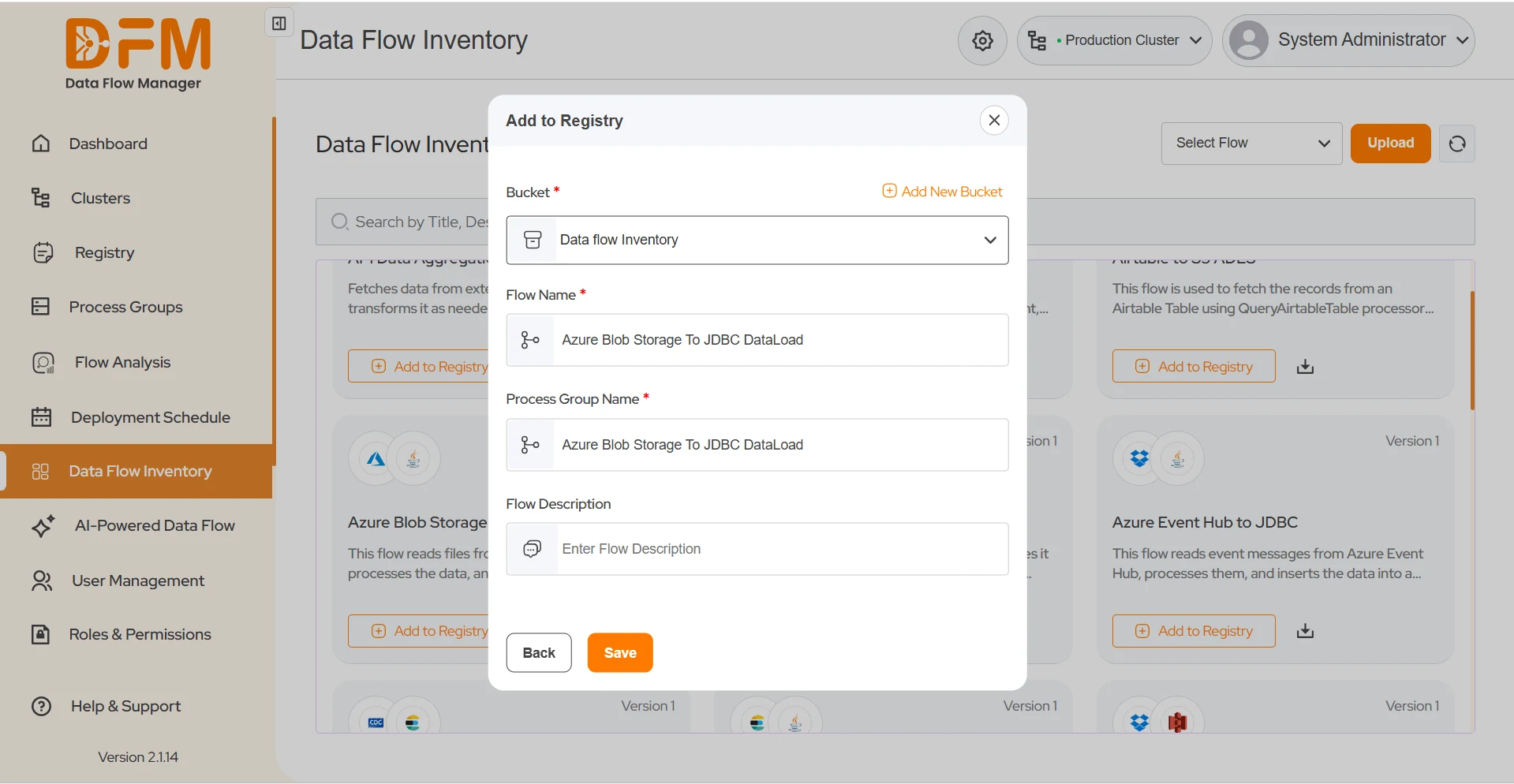
In the modal:
1. Select a Bucket
- Choose an existing bucket from the dropdown, or
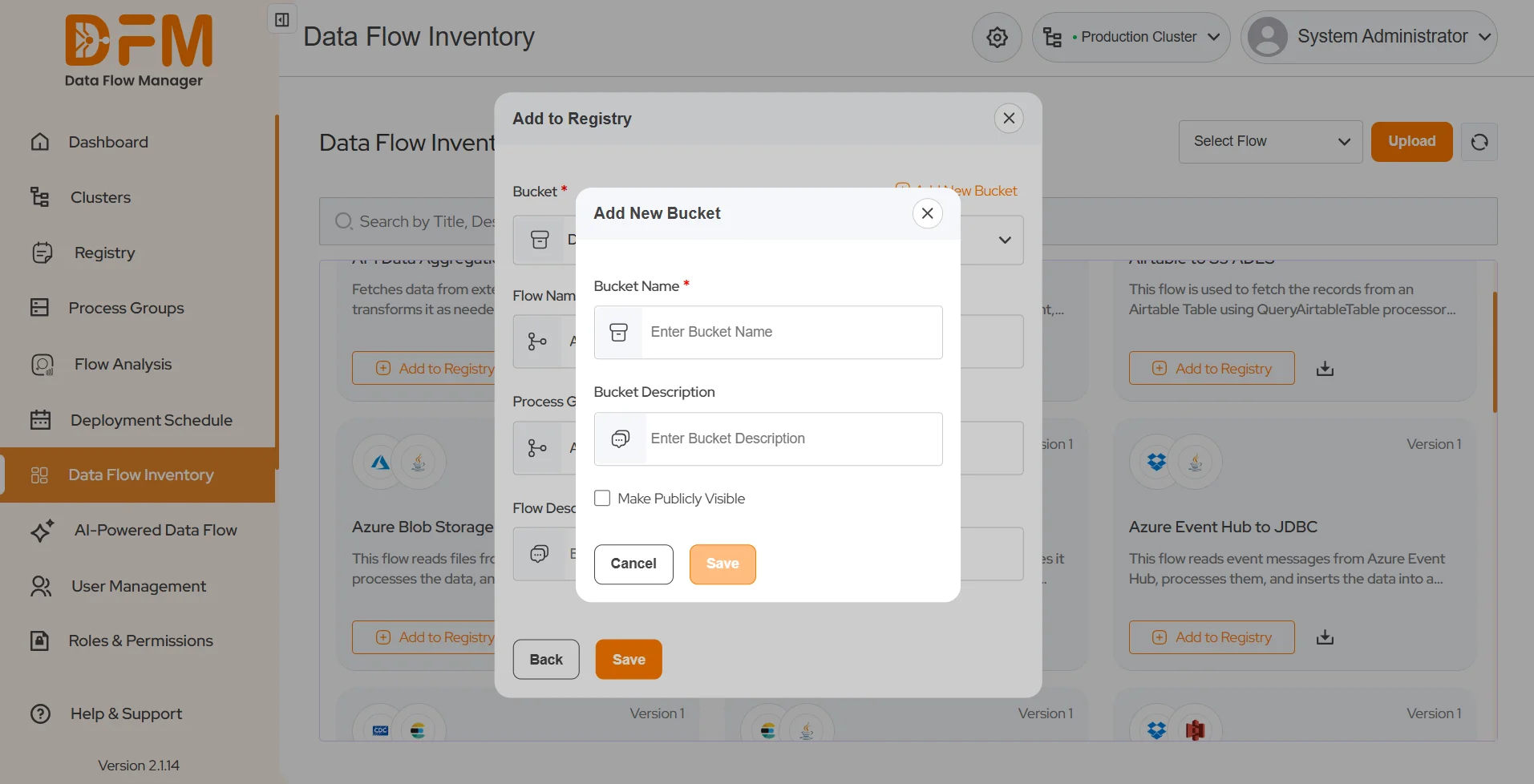
- Create a new one using Add New Bucket (top-right corner).
- Enter a Bucket Name and optional Description.
- (Optional) Enable Make publicly visible to allow unauthenticated read access.
- Click Save to add the bucket.
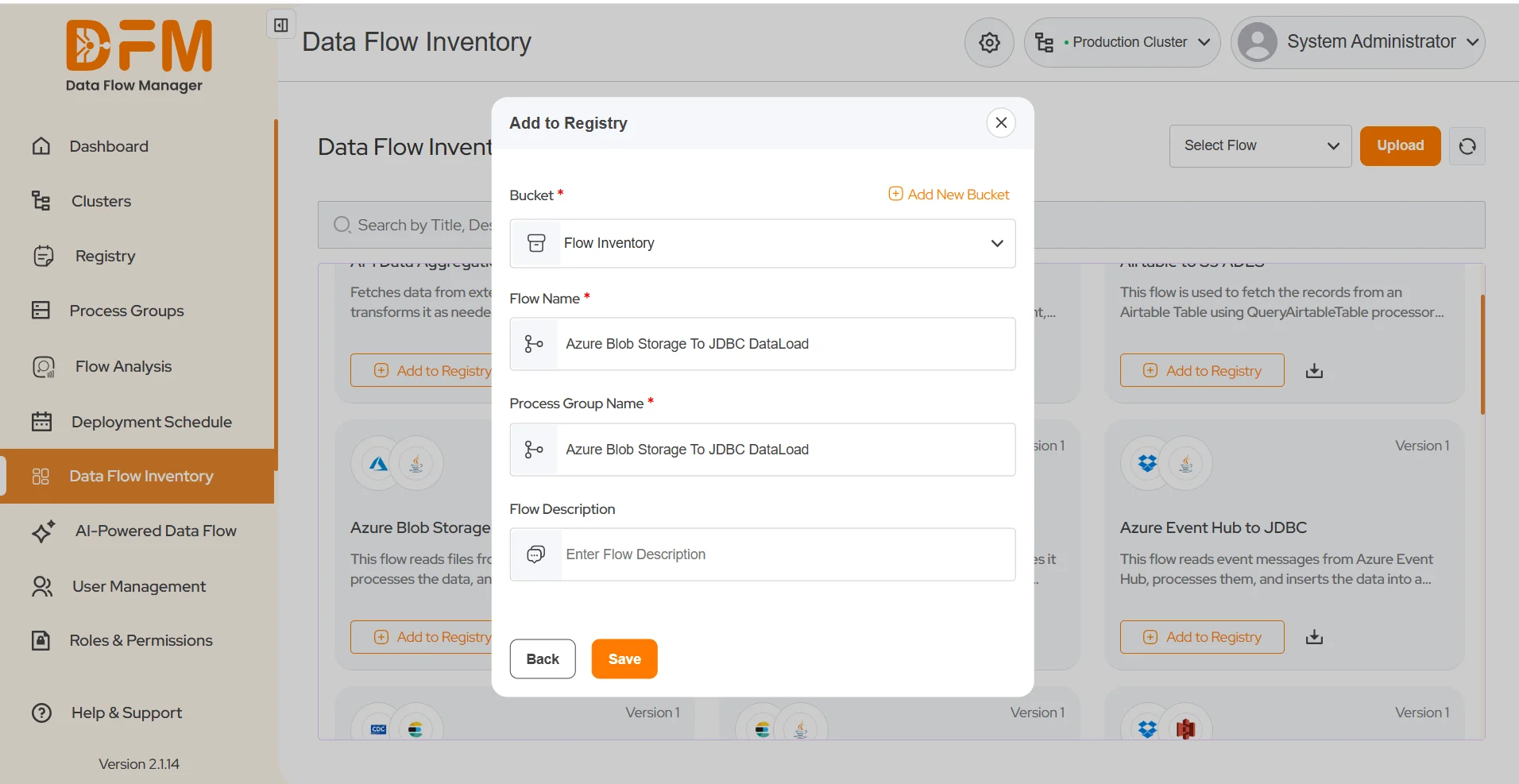
2. After successful addition of Bucket, the newly added Bucket will reflect in the Bucket field of Add to Registry modal, now provide flow details
-
Enter or edit:
- Flow Name
- Process Group Name
- Flow Description (optional)

- Click Save.
- A confirmation message appears: “Your flow has been successfully added to the registry.”
- If the flow already exists in the selected bucket, you’ll see a message: “The flow you are trying to add already exists in the selected bucket and registry.”
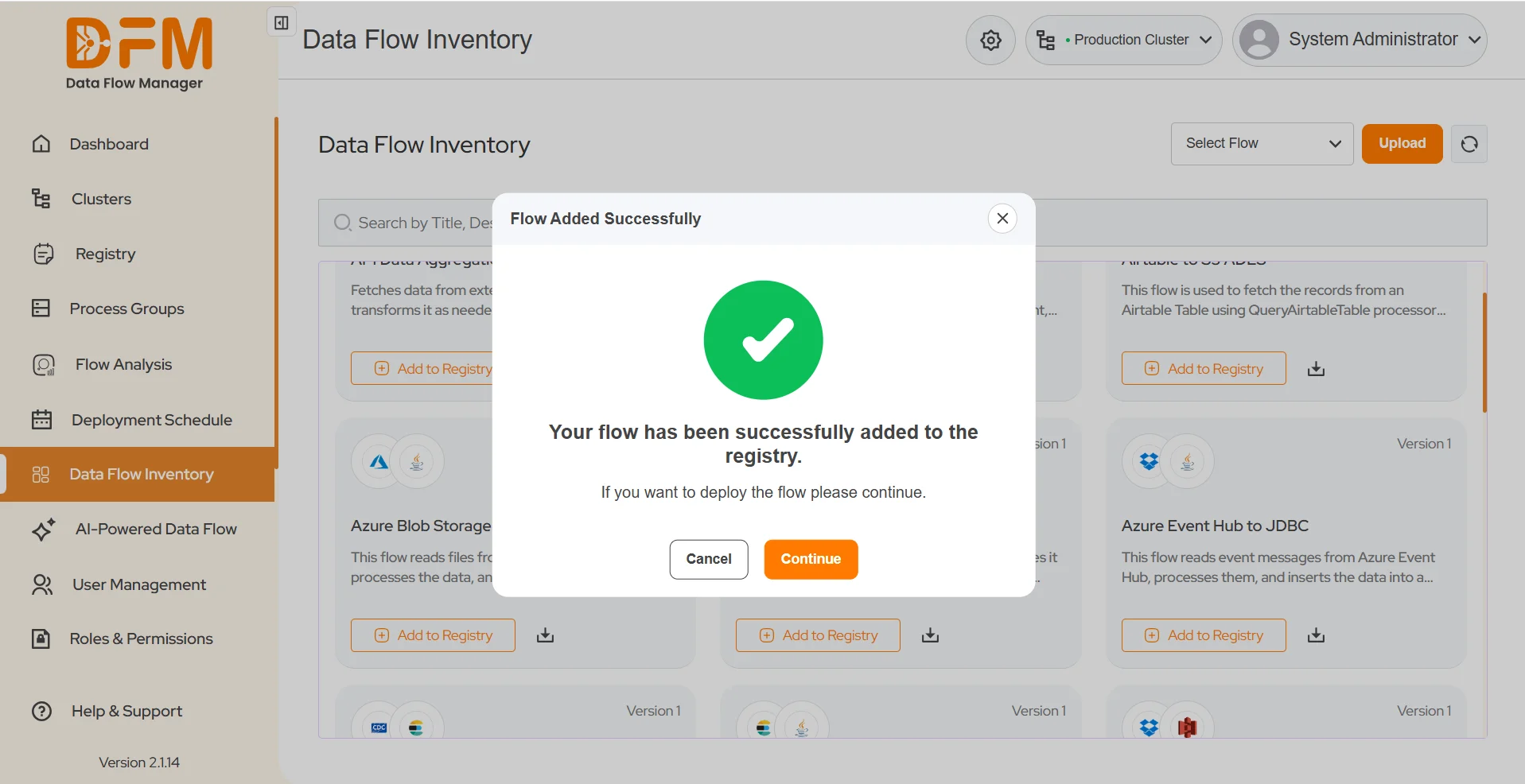
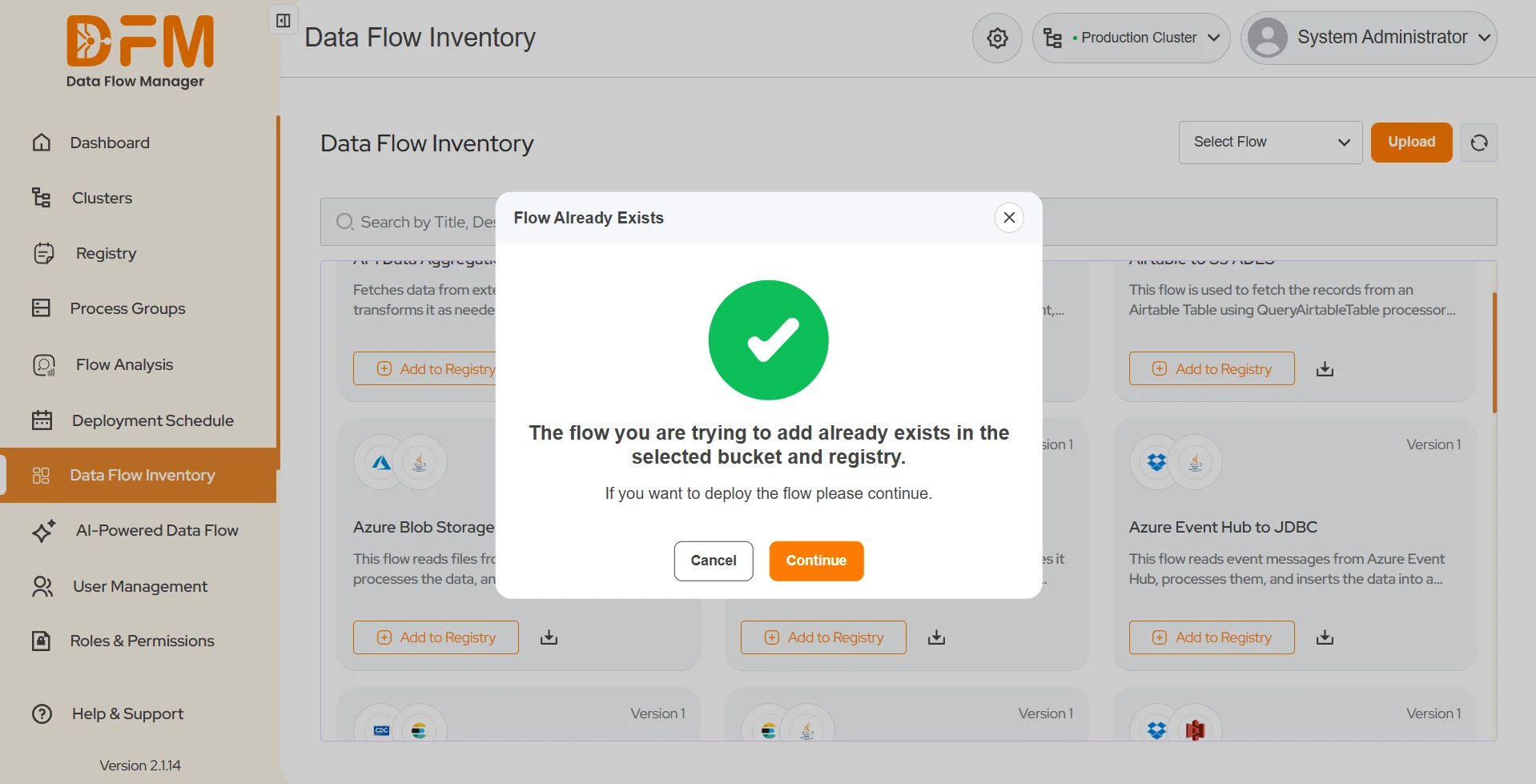
3. If you want to deploy the flow, click Continue. You will be redirected to the Process Groups page, where you can either select Deploy or Schedule Deployment.
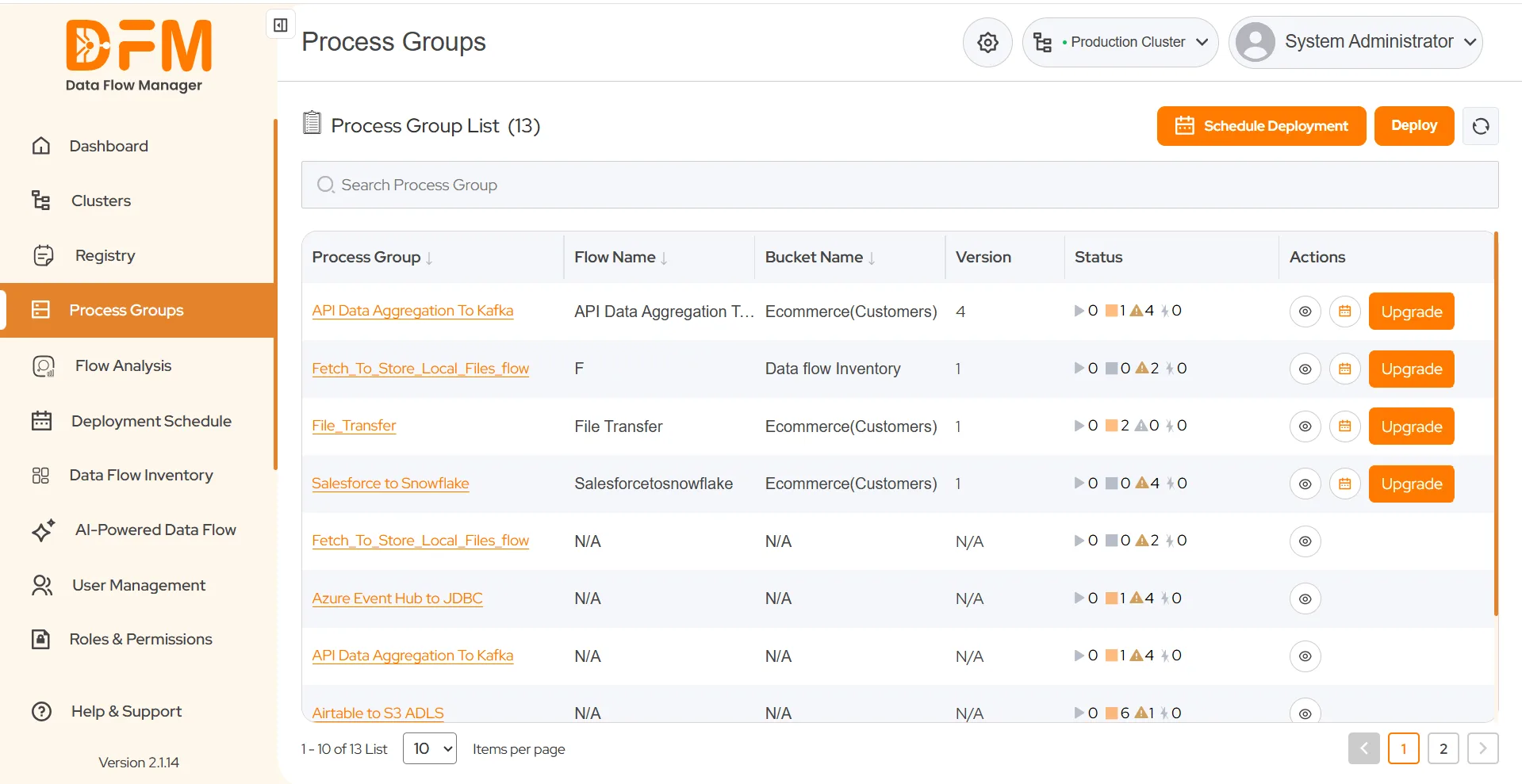
4. For detailed steps, refer to the Deployment section.
 1800 121 0218
  +1 (646) 203-1075
  +91 8527471031
 sales@ksolves.com