




Flow Validation
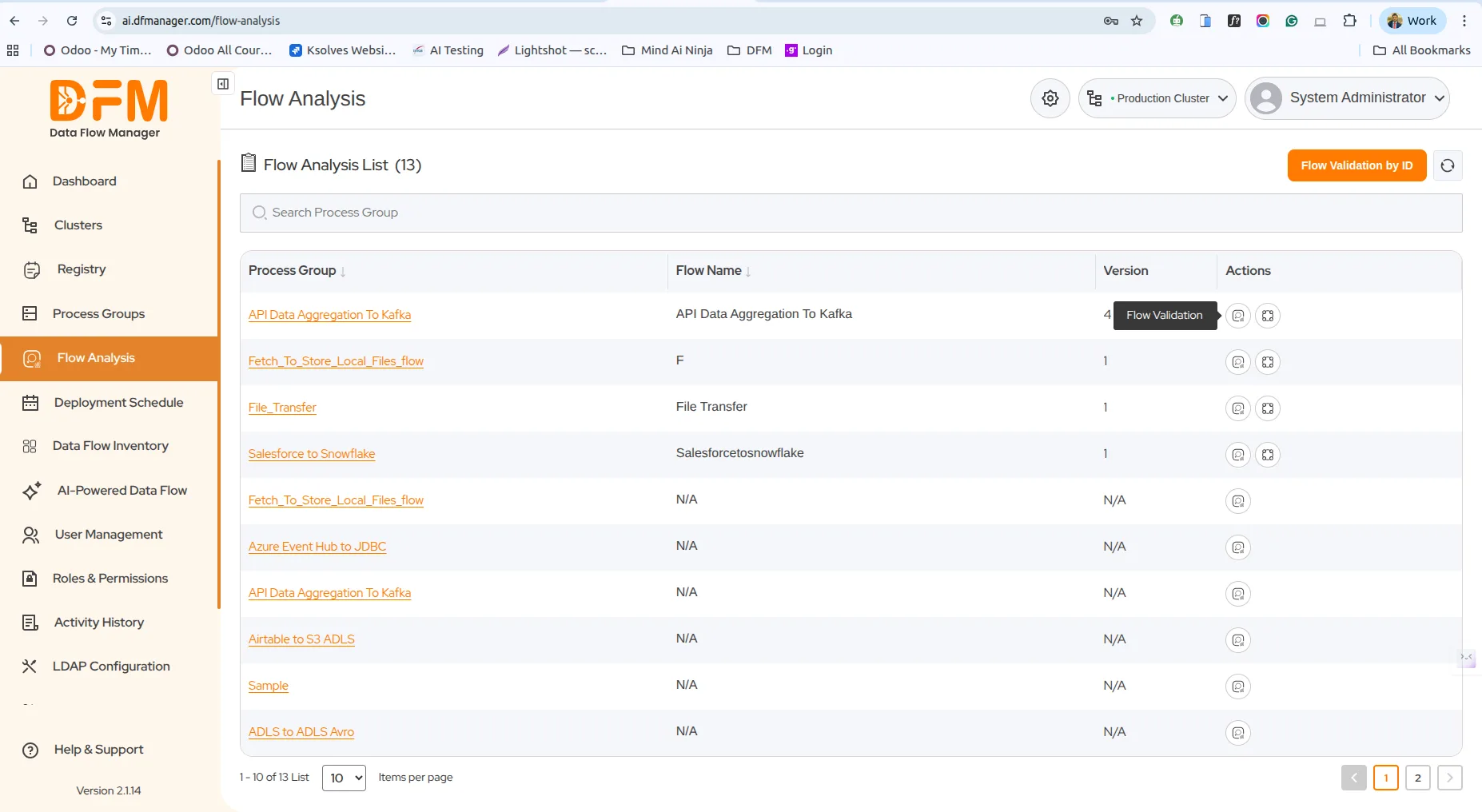
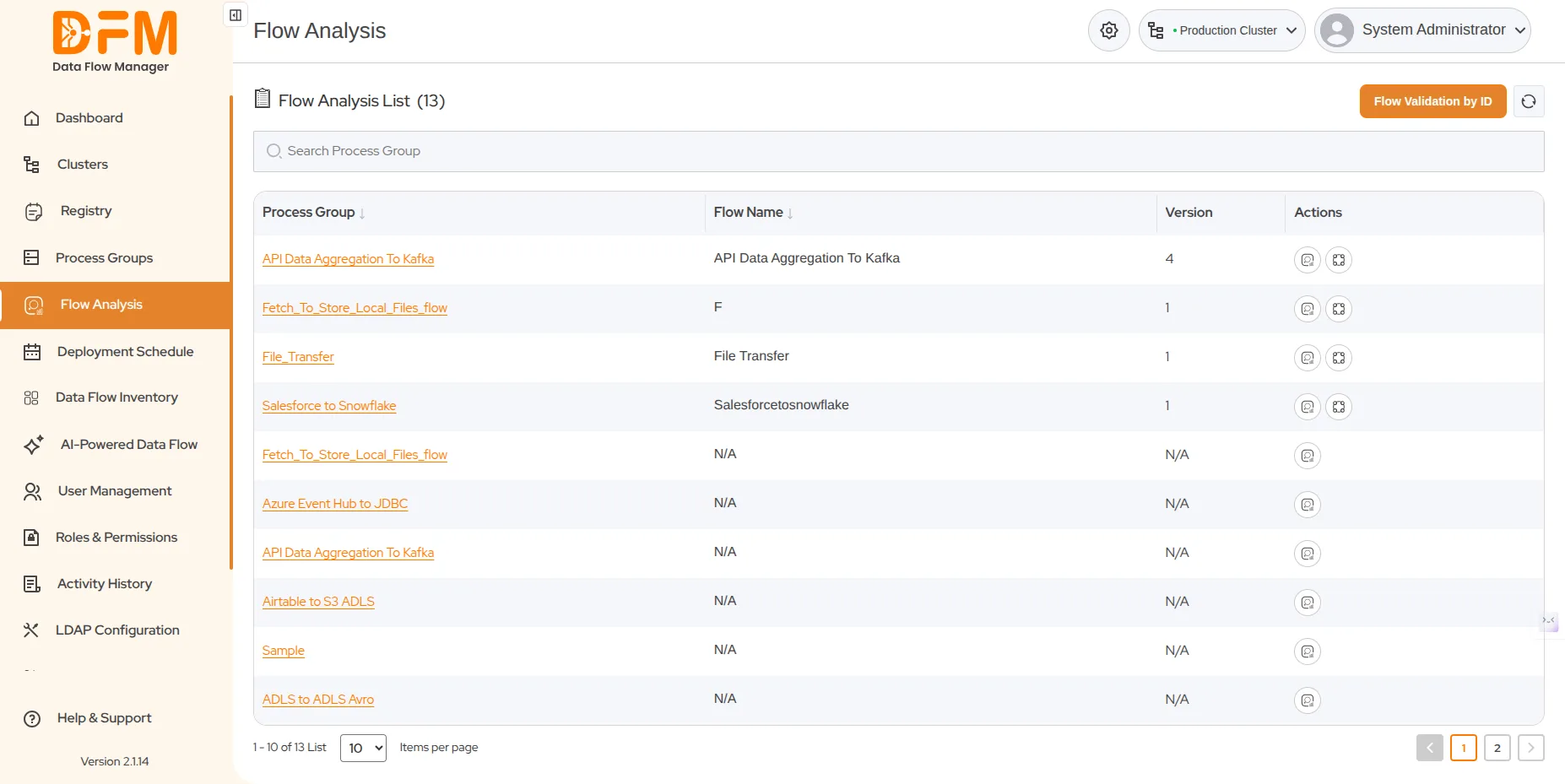
- To validate data flow configurations against pre-defined rules click on the flow validate icon under action column.
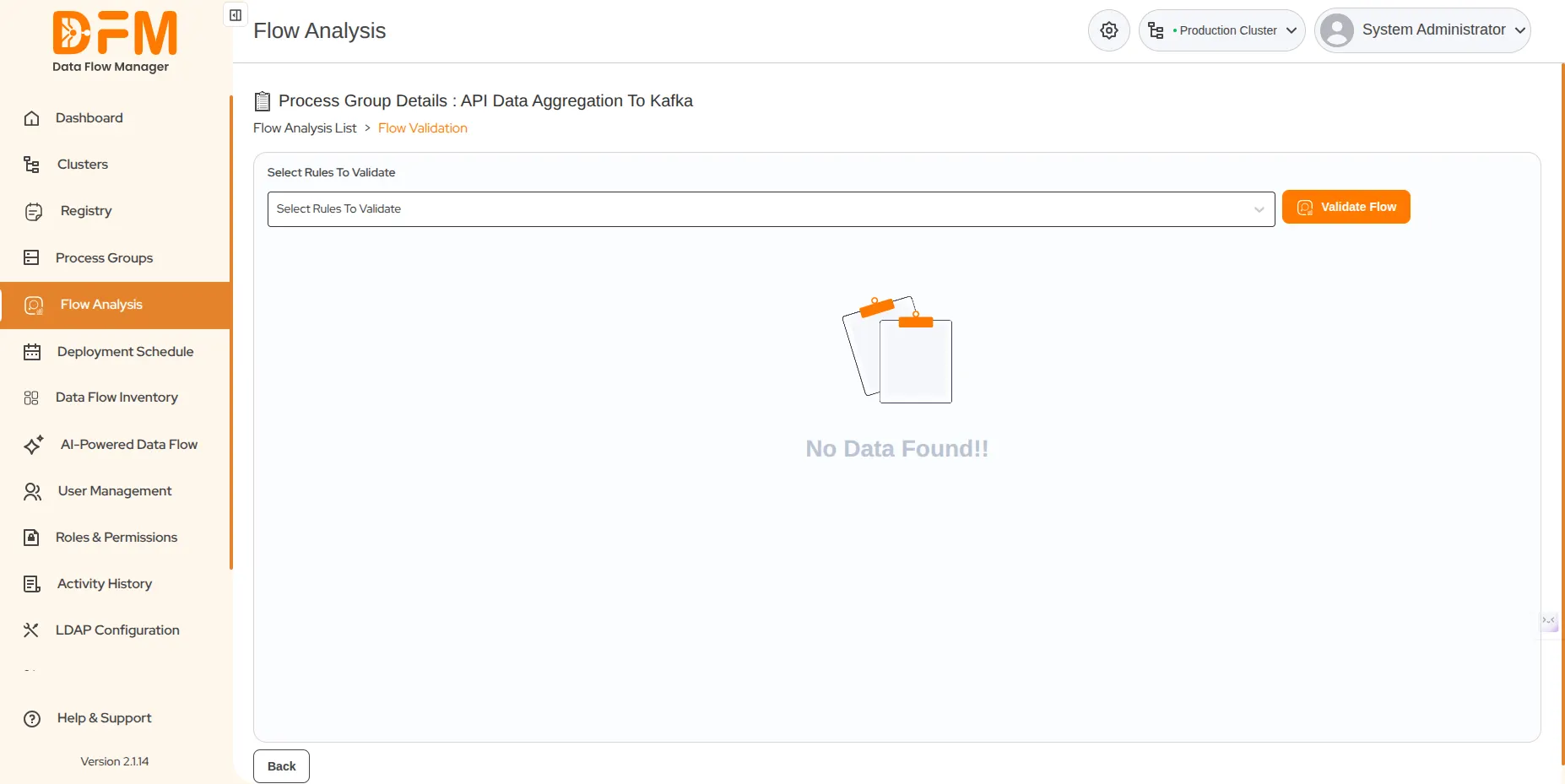
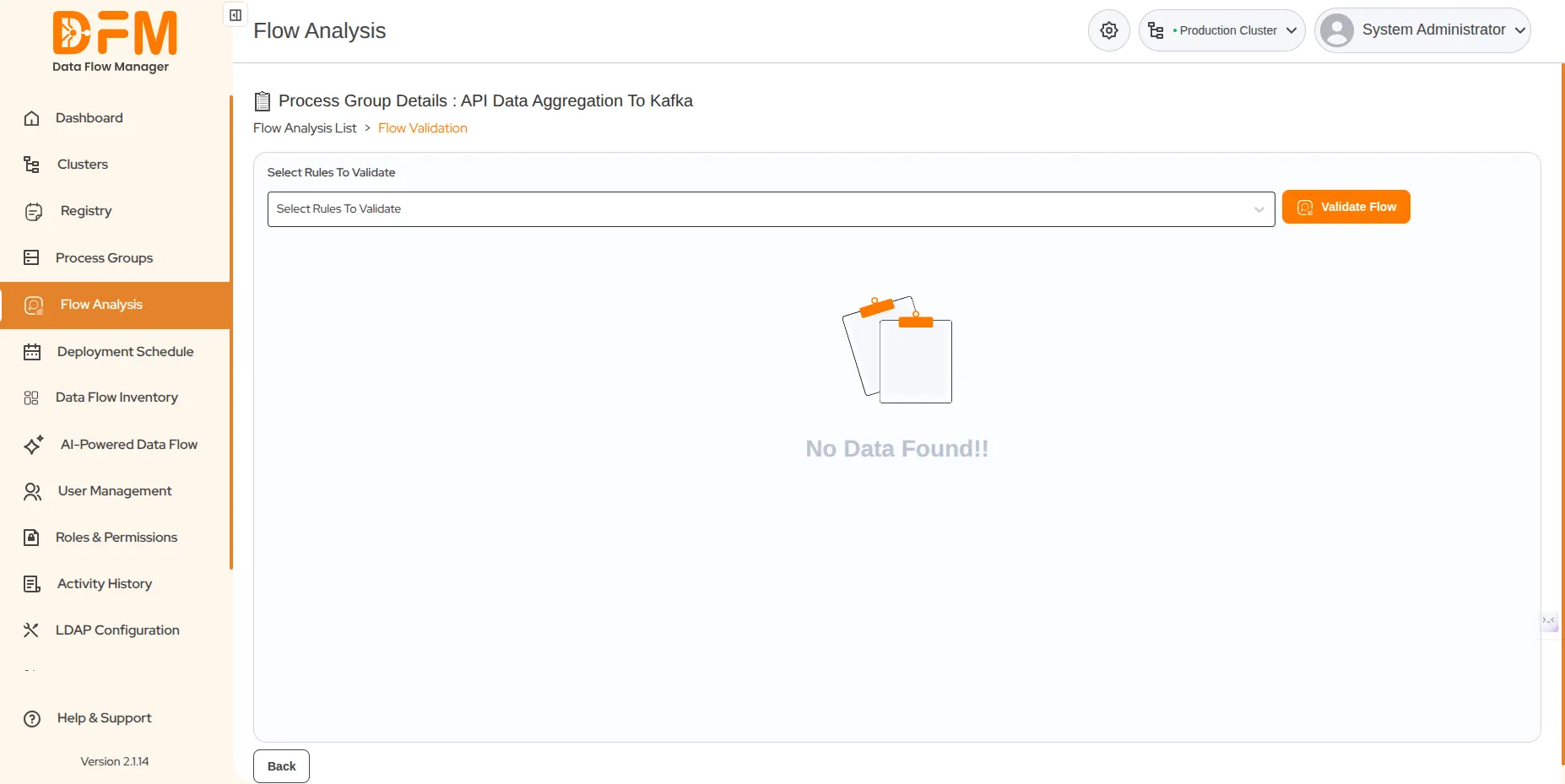
- If you do not select any specific rule from the dropdown, the system will validate all the rules displayed in the dropdown options.
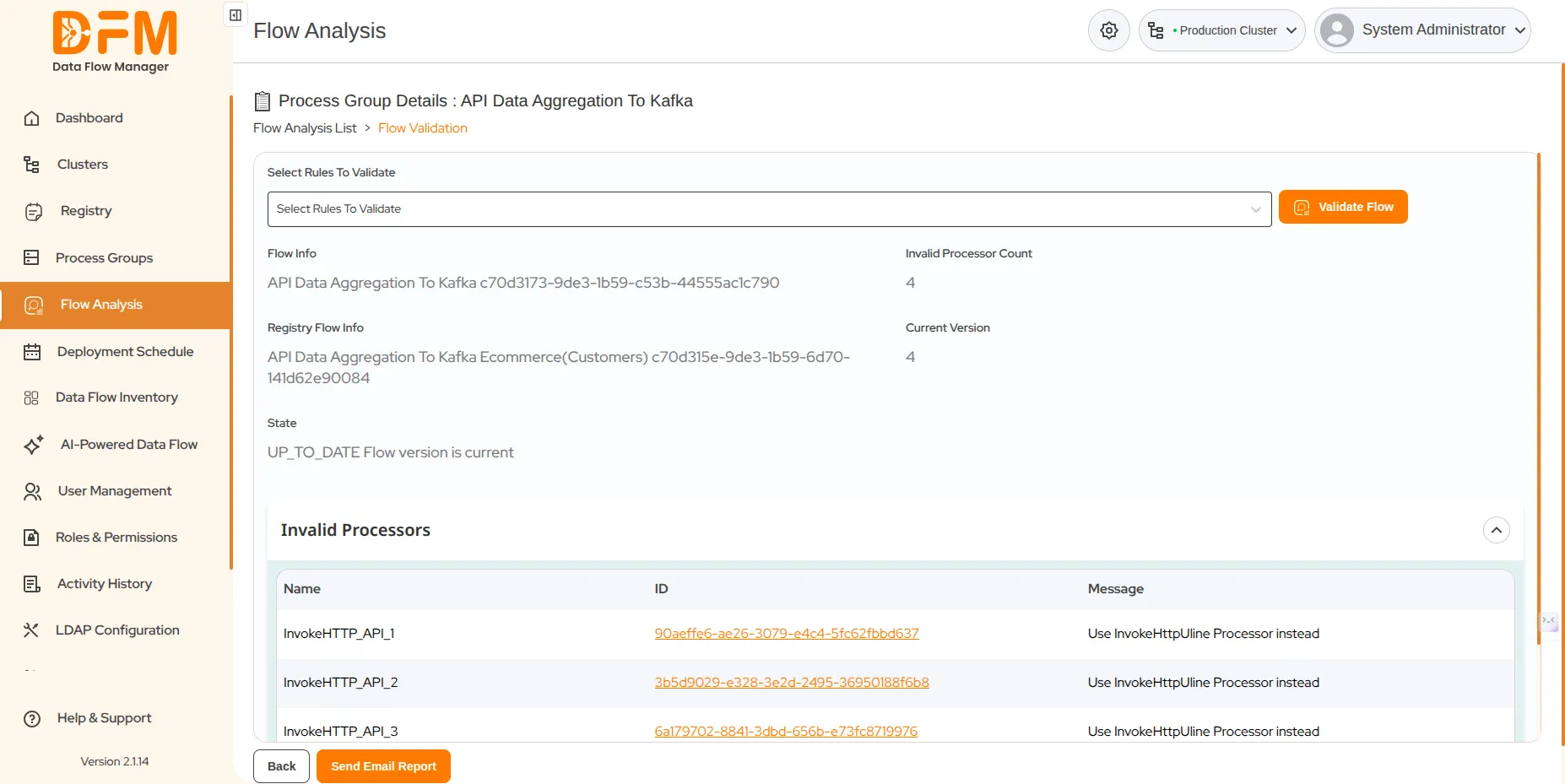
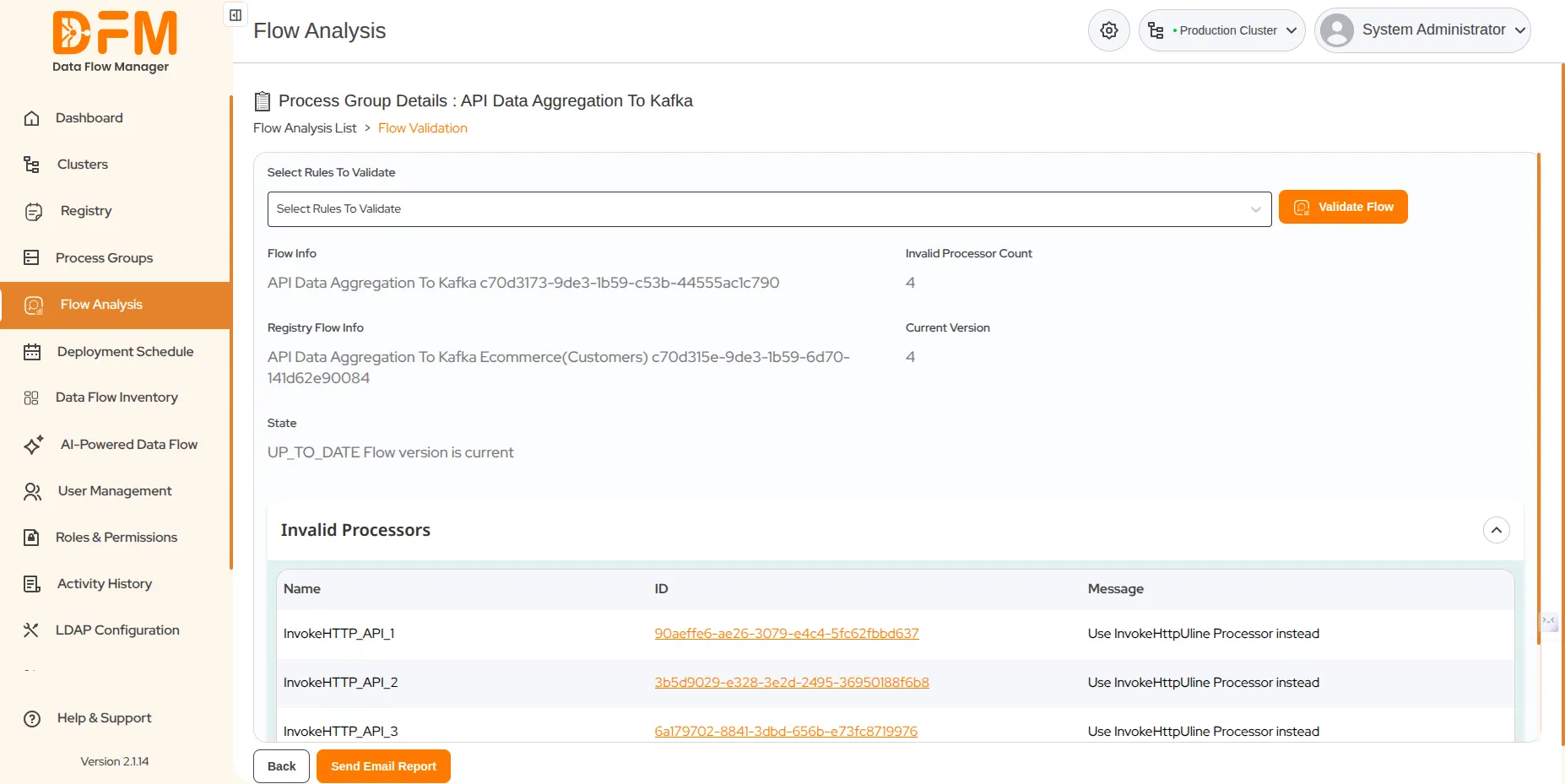
- After clicking on the “Validate Flow” button, it will display the rules that require correction, along with their name, ID, and message.
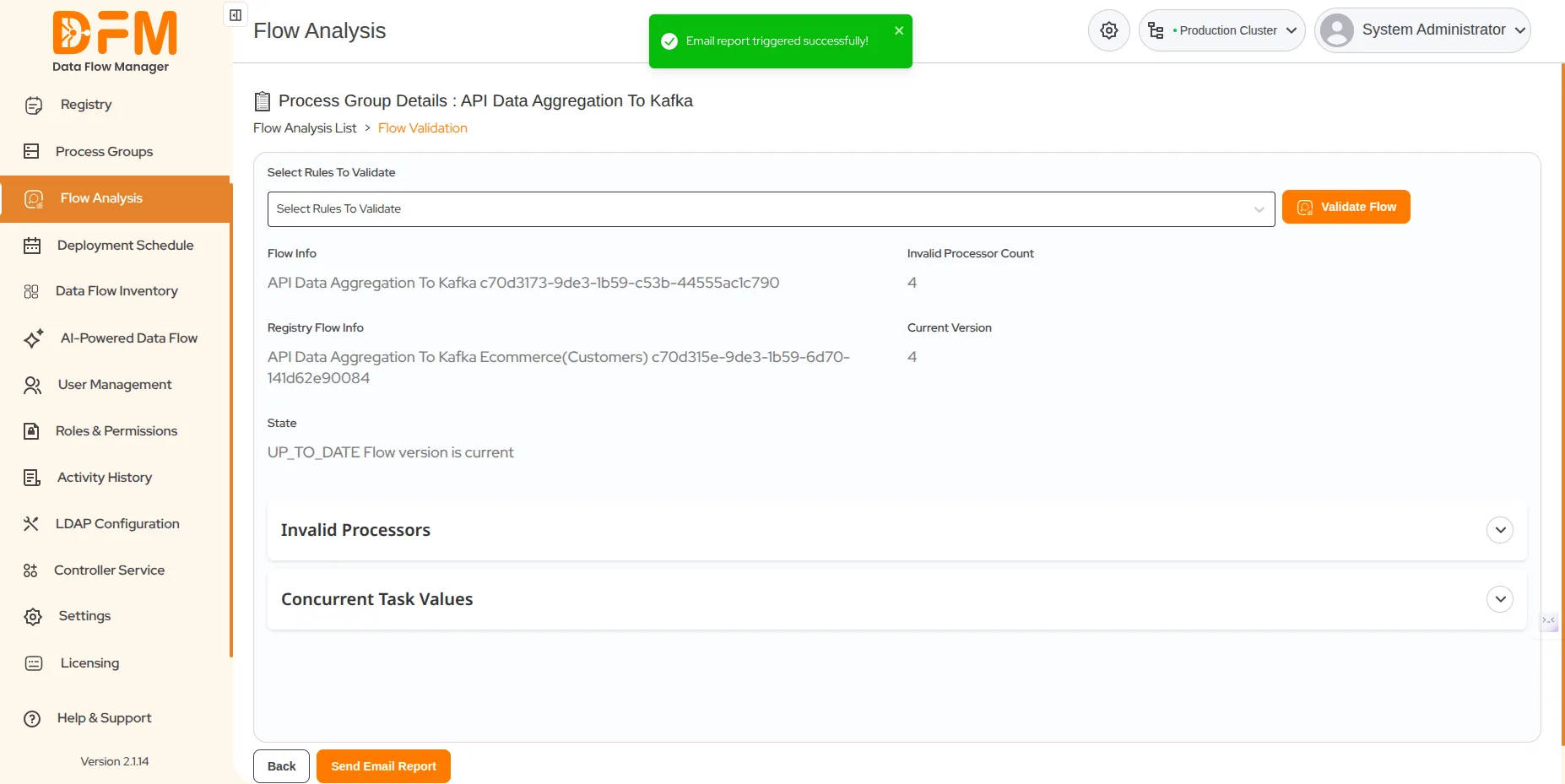
- Click on the “Send Email Report” button to send the report to your registered email address.
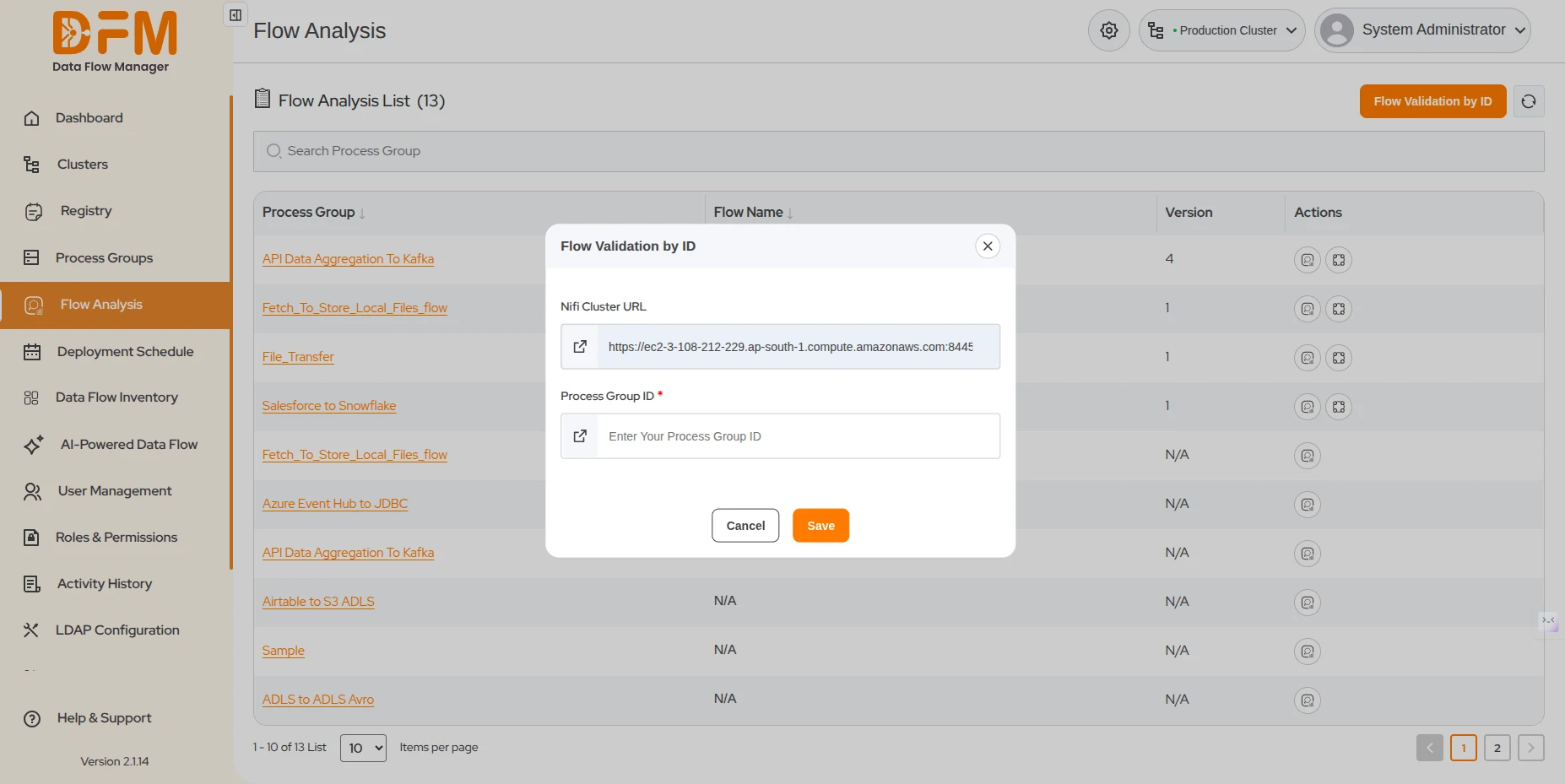
- The Flow Validation by ID button, which is present at the top right, allows users to directly validate a specific flow by entering its ID.
- To validate a particular flow by id click on the flow validate by id button and enter the “Process Group ID”
- Click on the save button to validate the flow
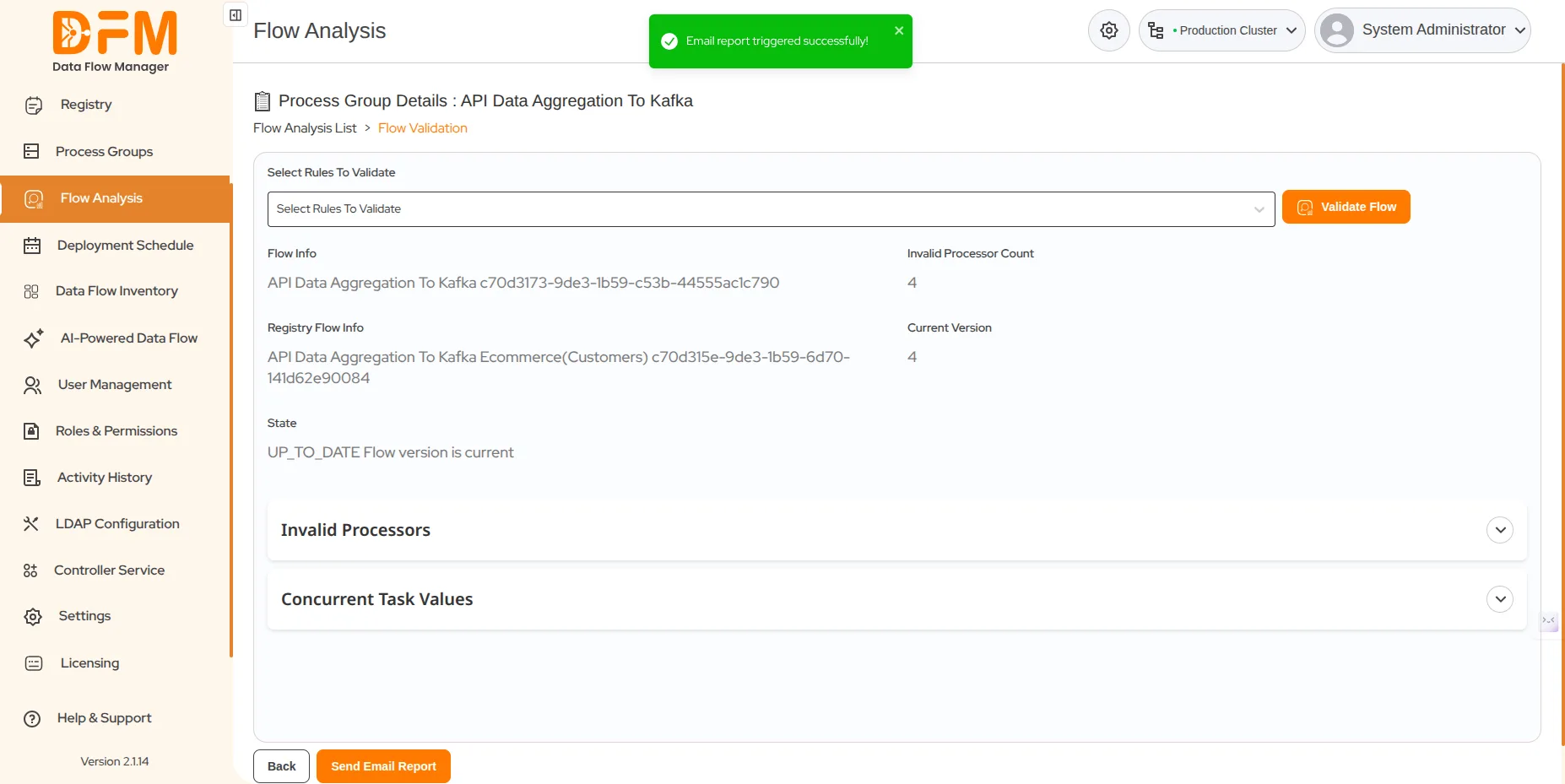
- Validate the flow by selecting rules to validate from the “Select Rules to Validate” dropdown.
- Click on the “Validate Flow” button to initiate validation.
- If you do not select any specific rule from the dropdown, the system will validate all the rules displayed in the dropdown options.
- After clicking on “Validate Flow”, it will display the rules that require correction, along with their name, ID, and message.
- Click on the “Send Email Report” button to send the report to your registered email address.
 1800 121 0218
  +1 (646) 203-1075
  +91 8527471031
 sales@ksolves.com