




How to upgrade a process group?
Upgrading a process group means deploying the latest version of the flow to the target cluster. Let’s say you made changes to the process group and committed to the registry, which will create version 2 of the process group. To deploy version 2, you can simply upgrade the process group.
If you choose to deploy it, Data Flow Manager will create a new copy of the process group on the target cluster, leaving the original version unchanged.
To upgrade a process group:
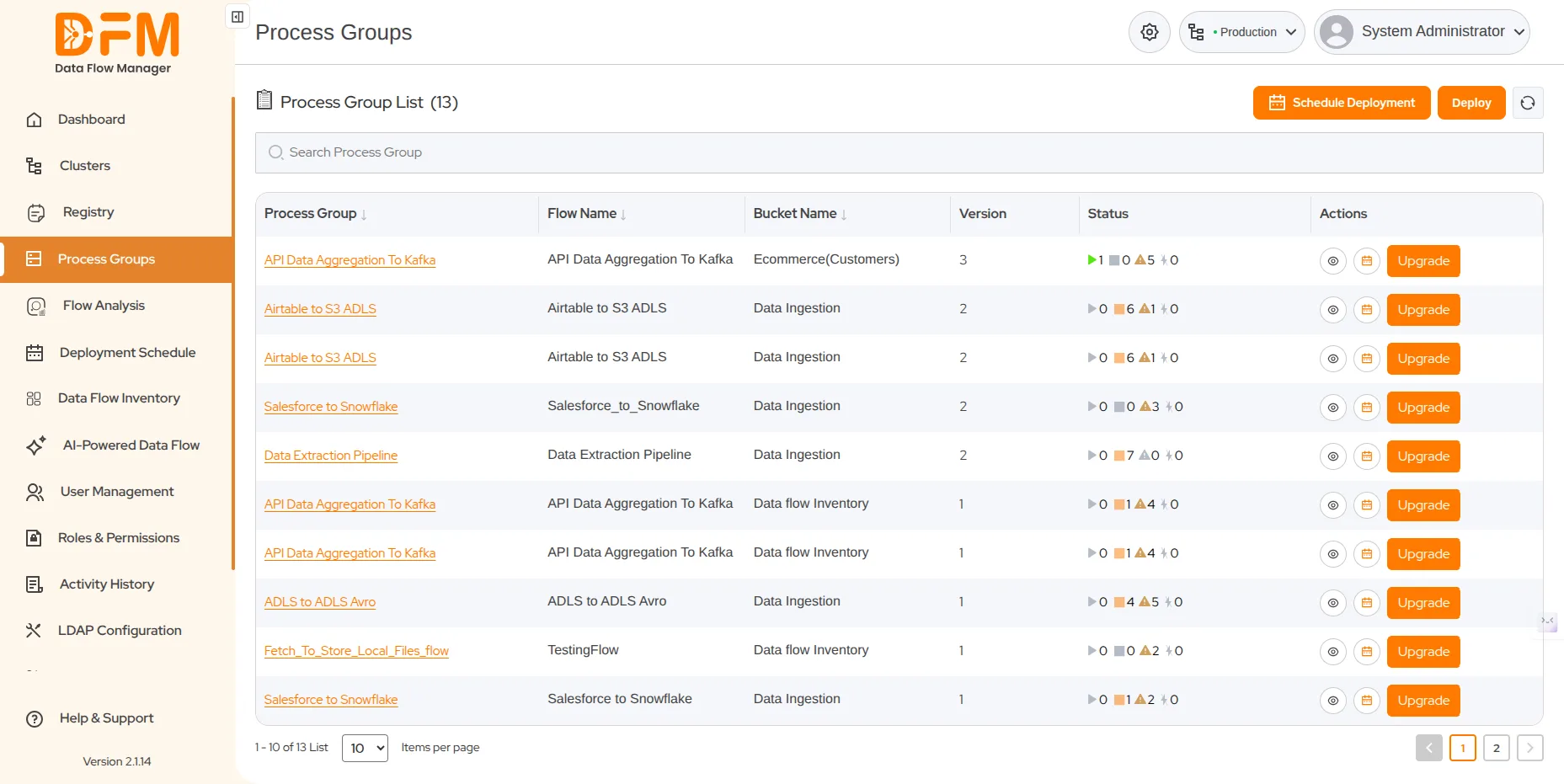
- Navigate to the process group under the Process Group tab.
- From the Actions column, click the Upgrade button.
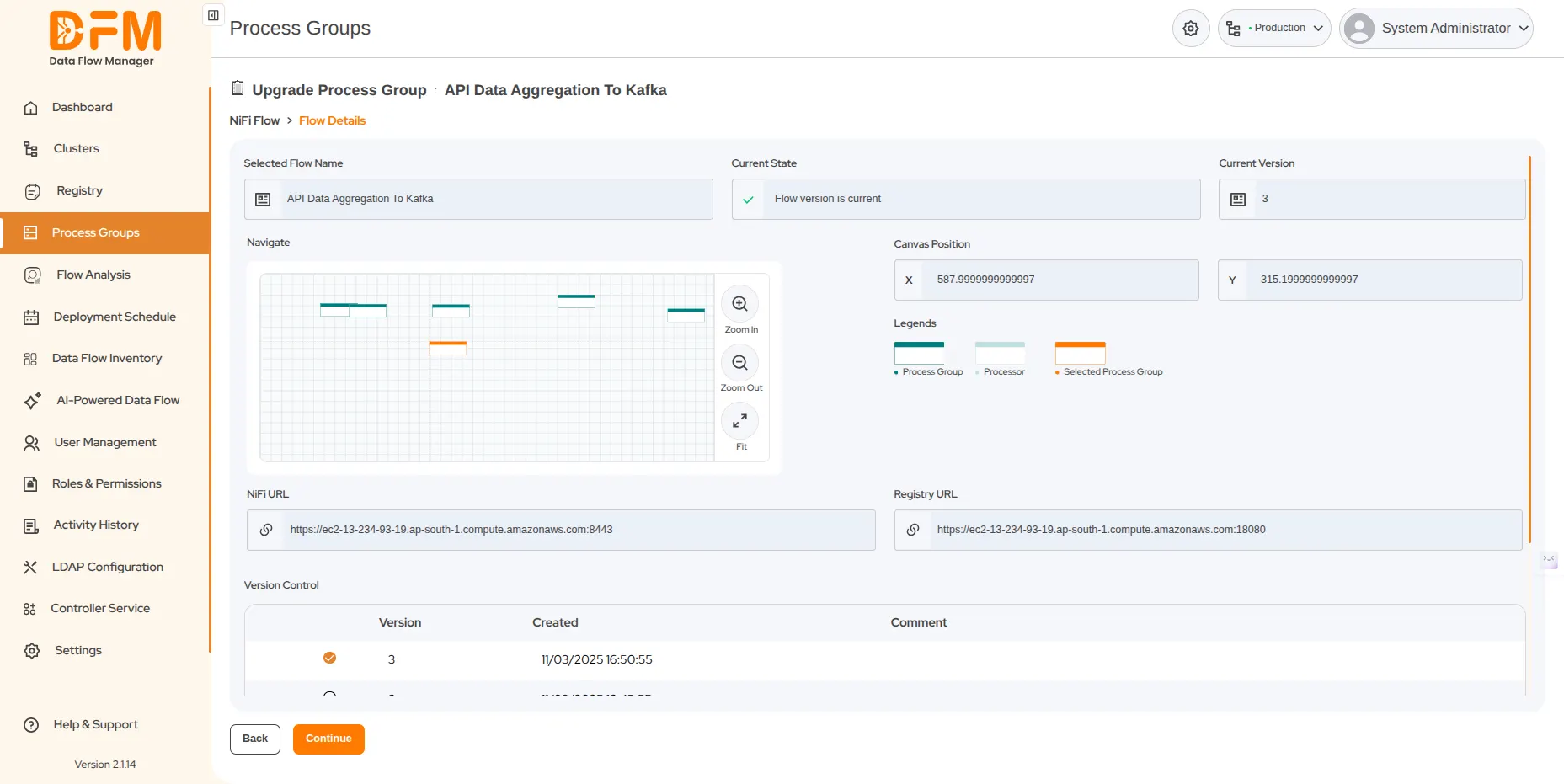
- Choose the flow version that you want to deploy and Continue.
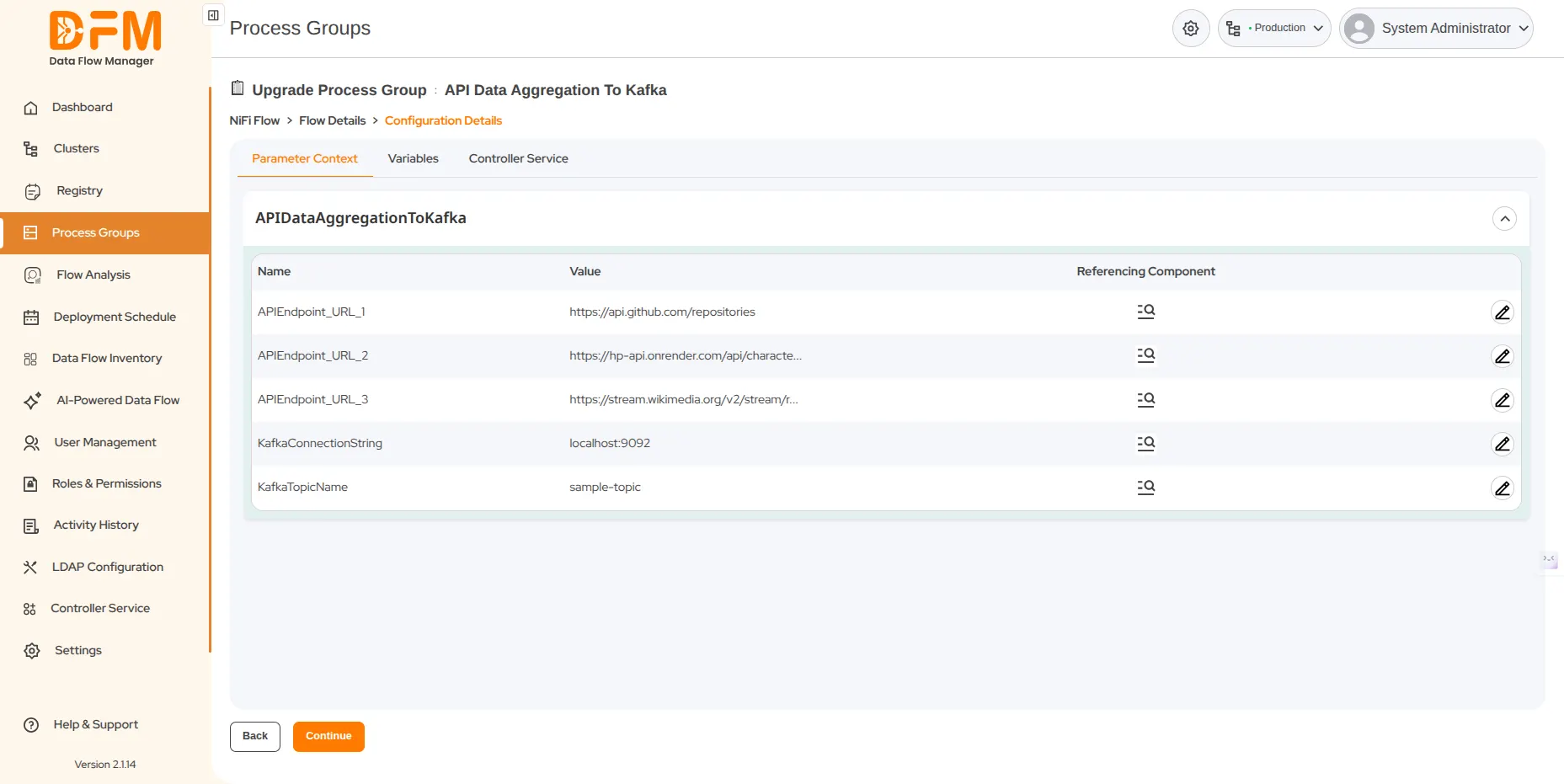
- Edit parameter contexts or variables, configure the controller service, and continue.
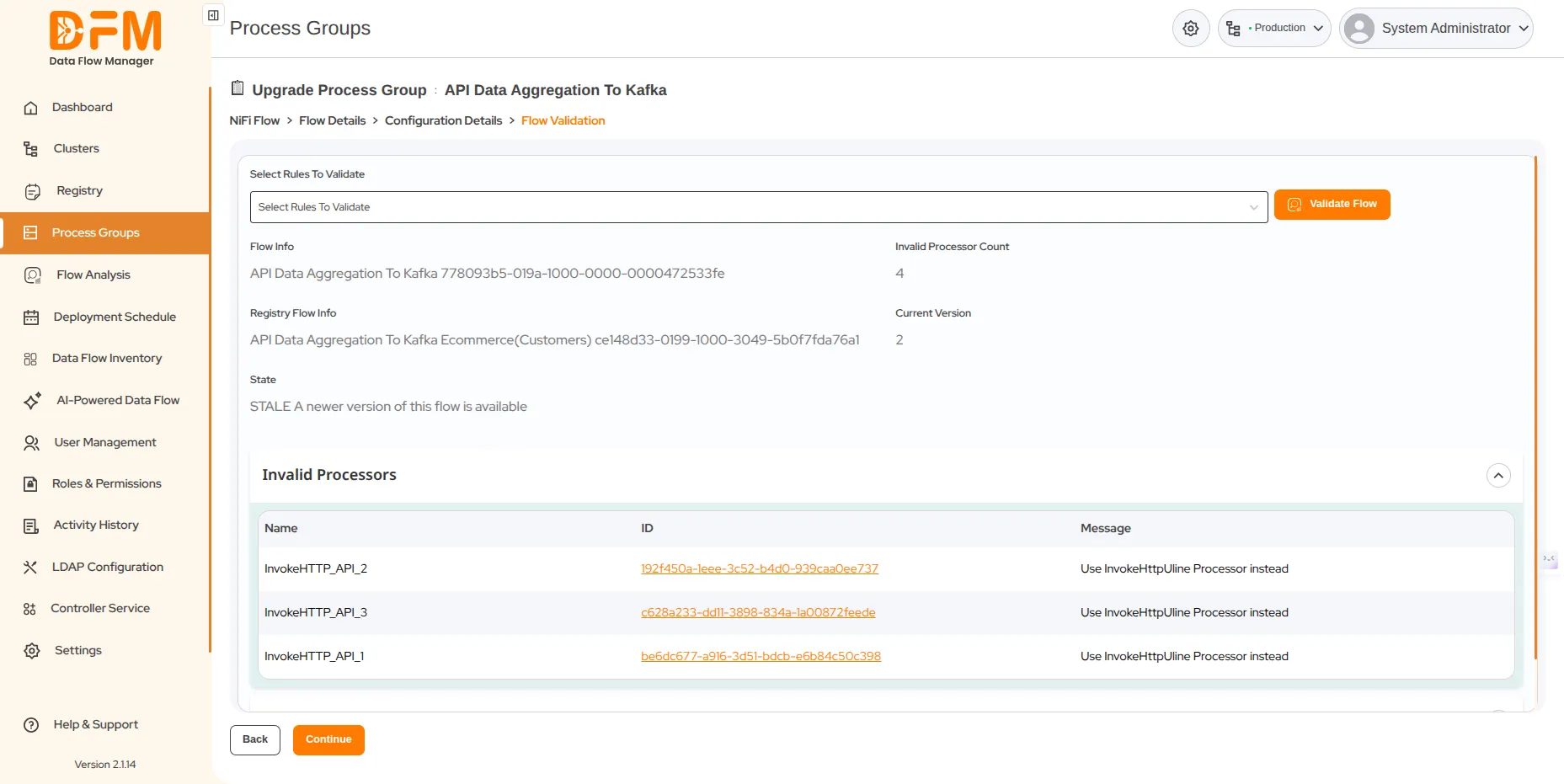
- Validate the flow by selecting rules to validate from the “Select Rules to Validate” dropdown.
- Click on the “Validate Flow” button to initiate validation.
- If you do not select any specific rule from the dropdown, the system will validate all the rules displayed in the dropdown options.
- After clicking on “Validate Flow”, it will display the rules that require correction, along with their name, ID, and message.
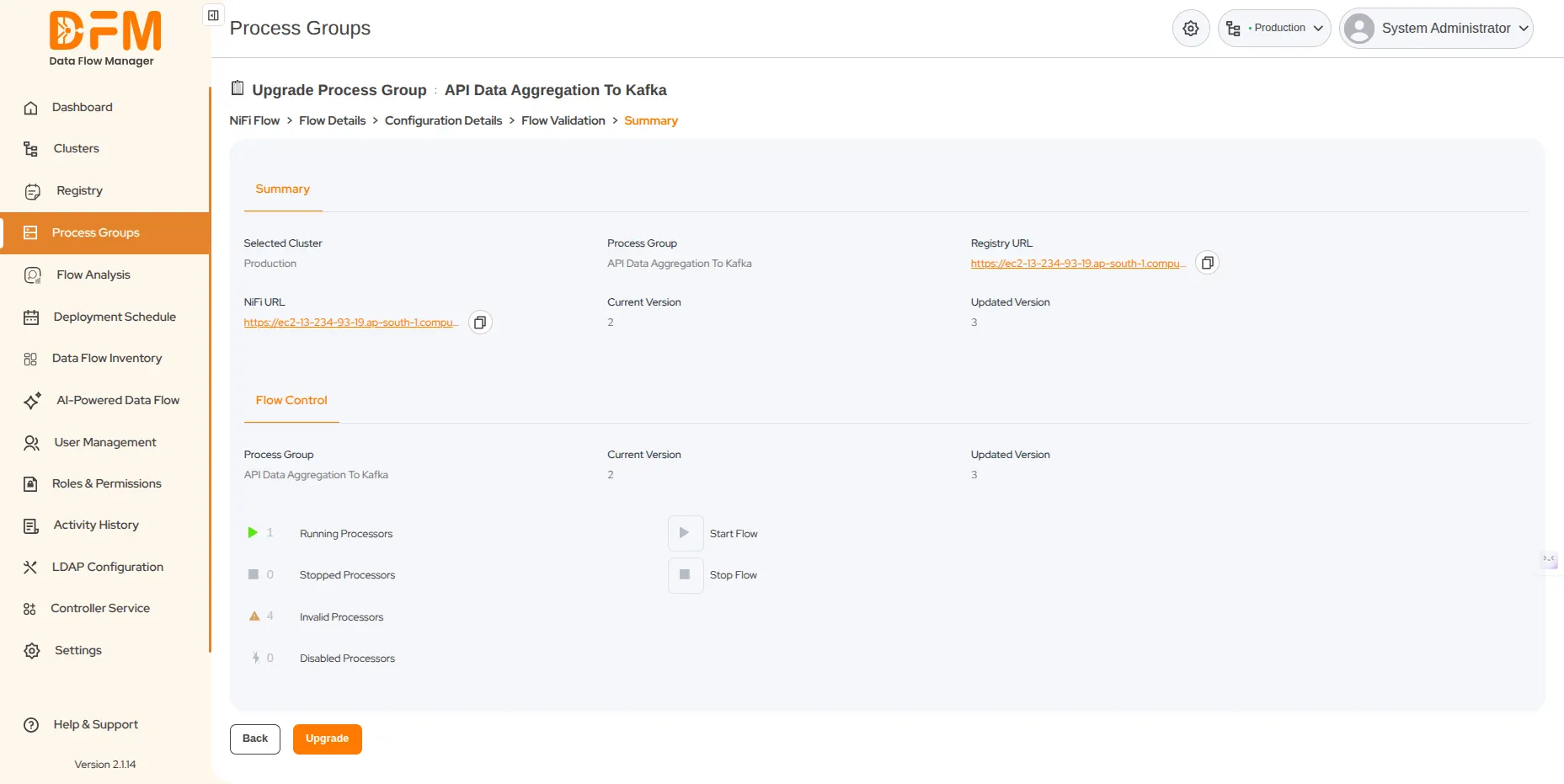
- Verify the process group details, choose whether to start or stop the flow, and click Upgrade.
- You get a confirmation message about the successful upgrade of the flow version.
 1800 121 0218
  +1 (646) 203-1075
  +91 8527471031
 sales@ksolves.com