




Adding a Registry from the Cluster Configuration
You can also add a Registry while:
- Registering a new cluster, or
- Editing an existing cluster.
1. Open Cluster Configuration
- Go to the Clusters page. Click:
- Add Cluster (top-right corner) to register a new cluster, or

- Edit on an existing cluster.

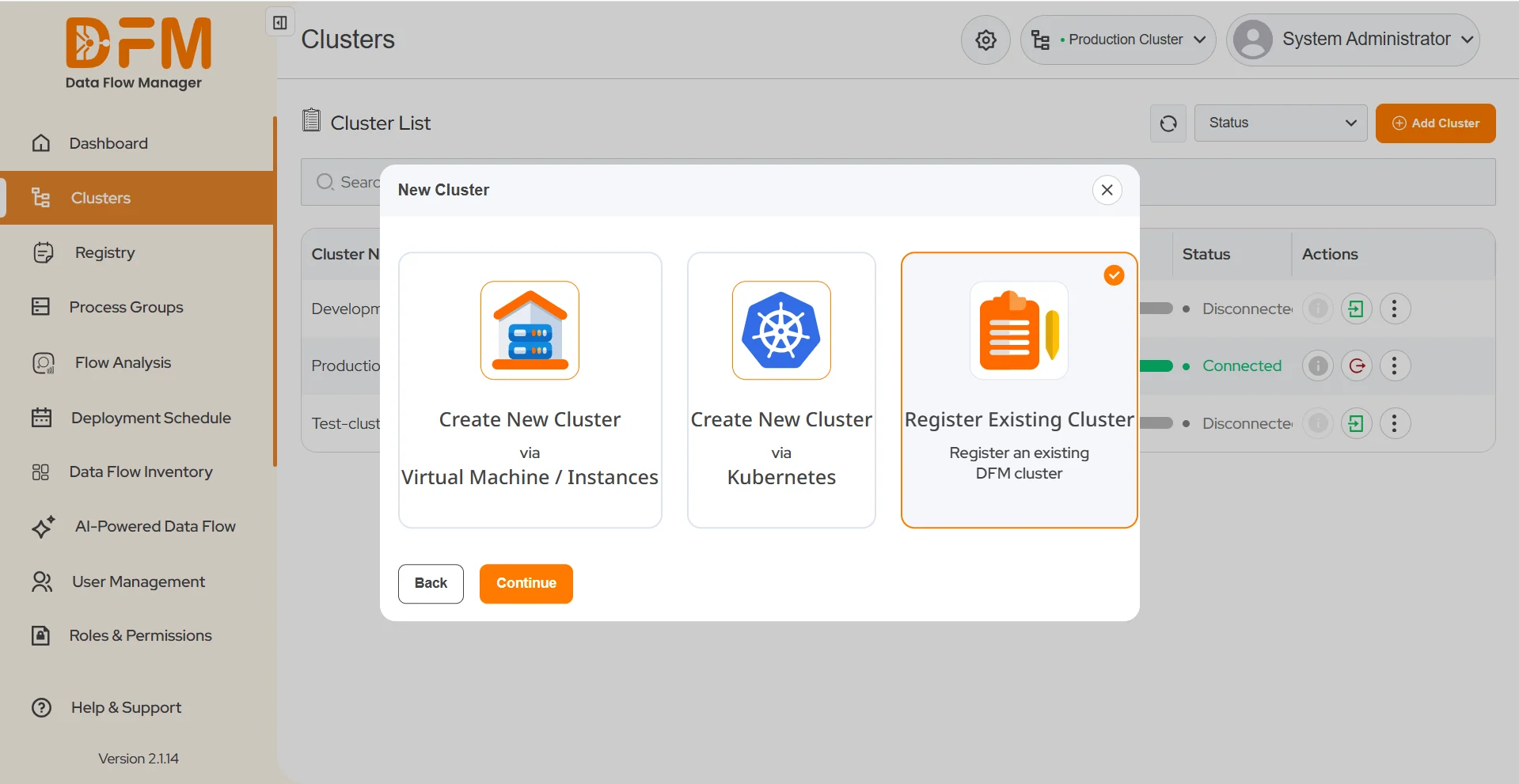
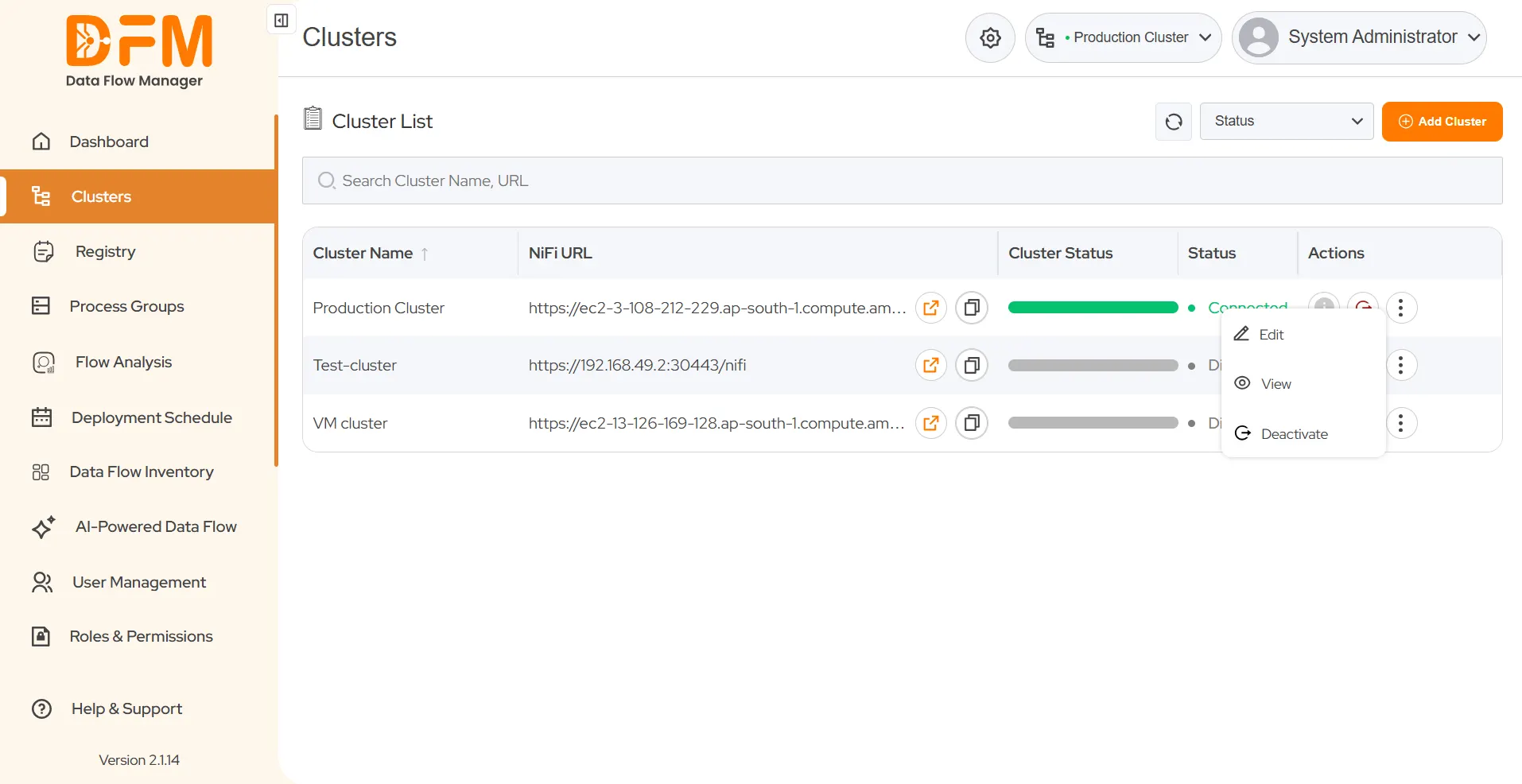
2. Access Registry Details
- In the Clusters modal, go to the Registry Details section.
- Click Add New Registry.
- The Add Registry modal opens — this method supports both authenticated and unauthenticated registries.
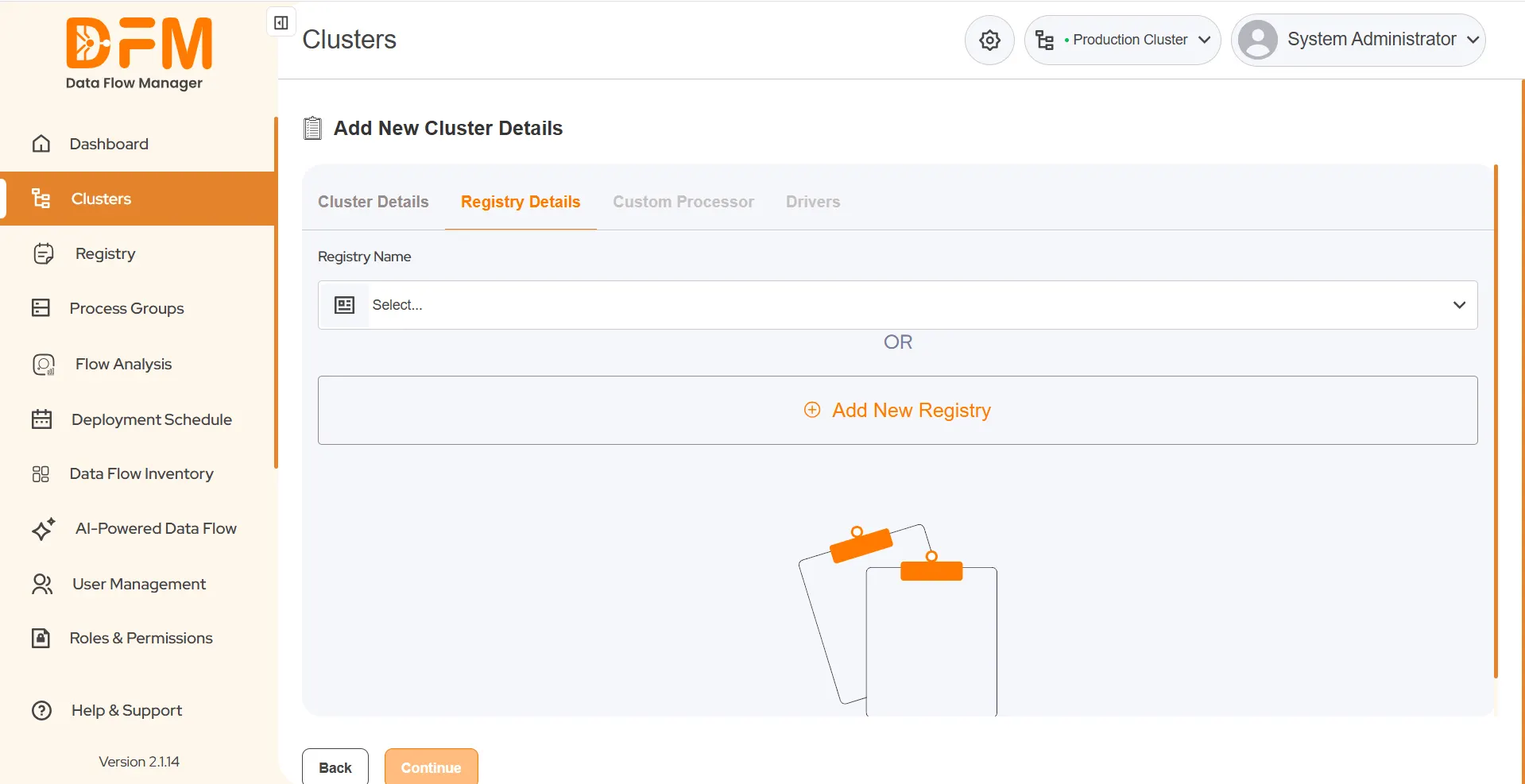
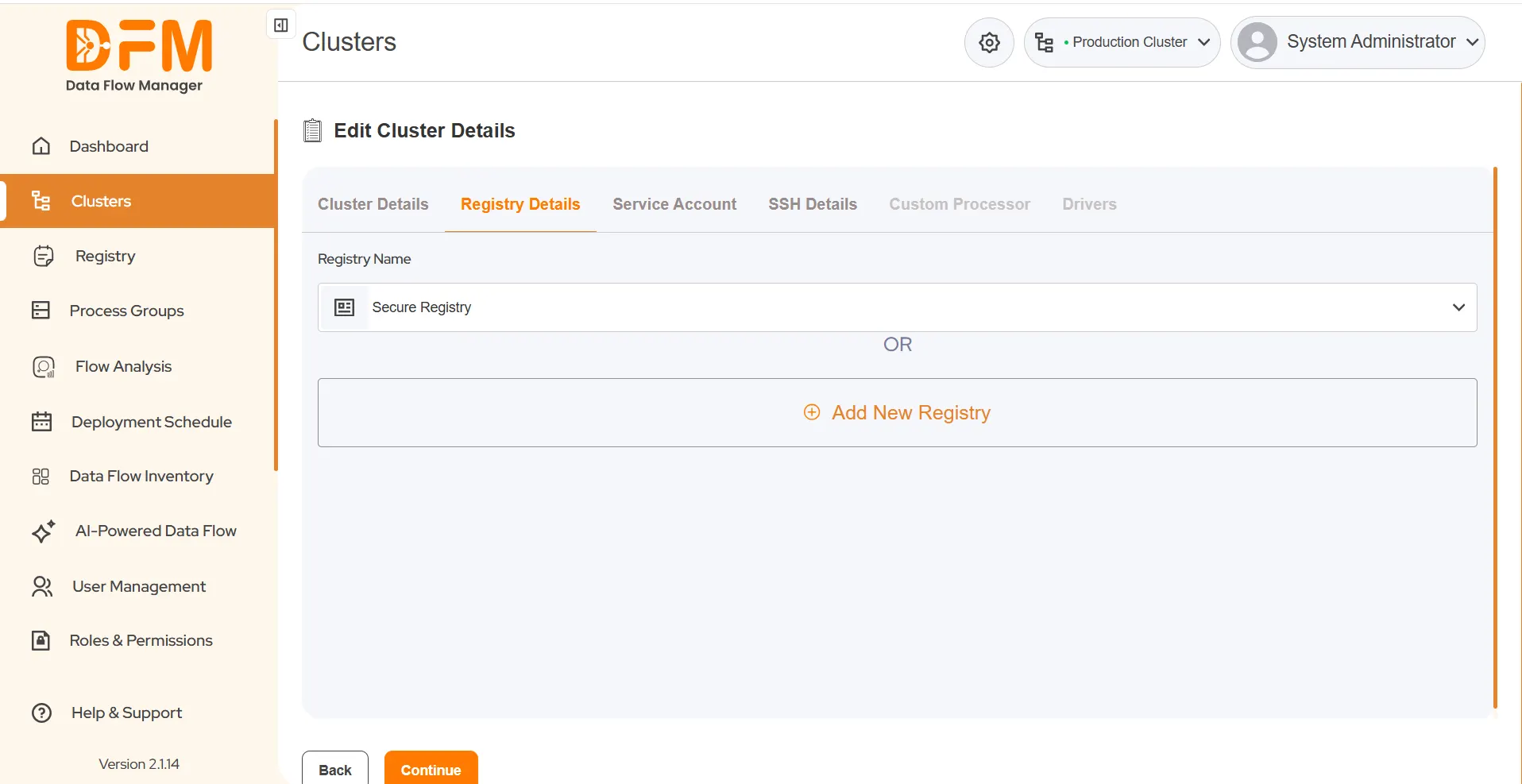
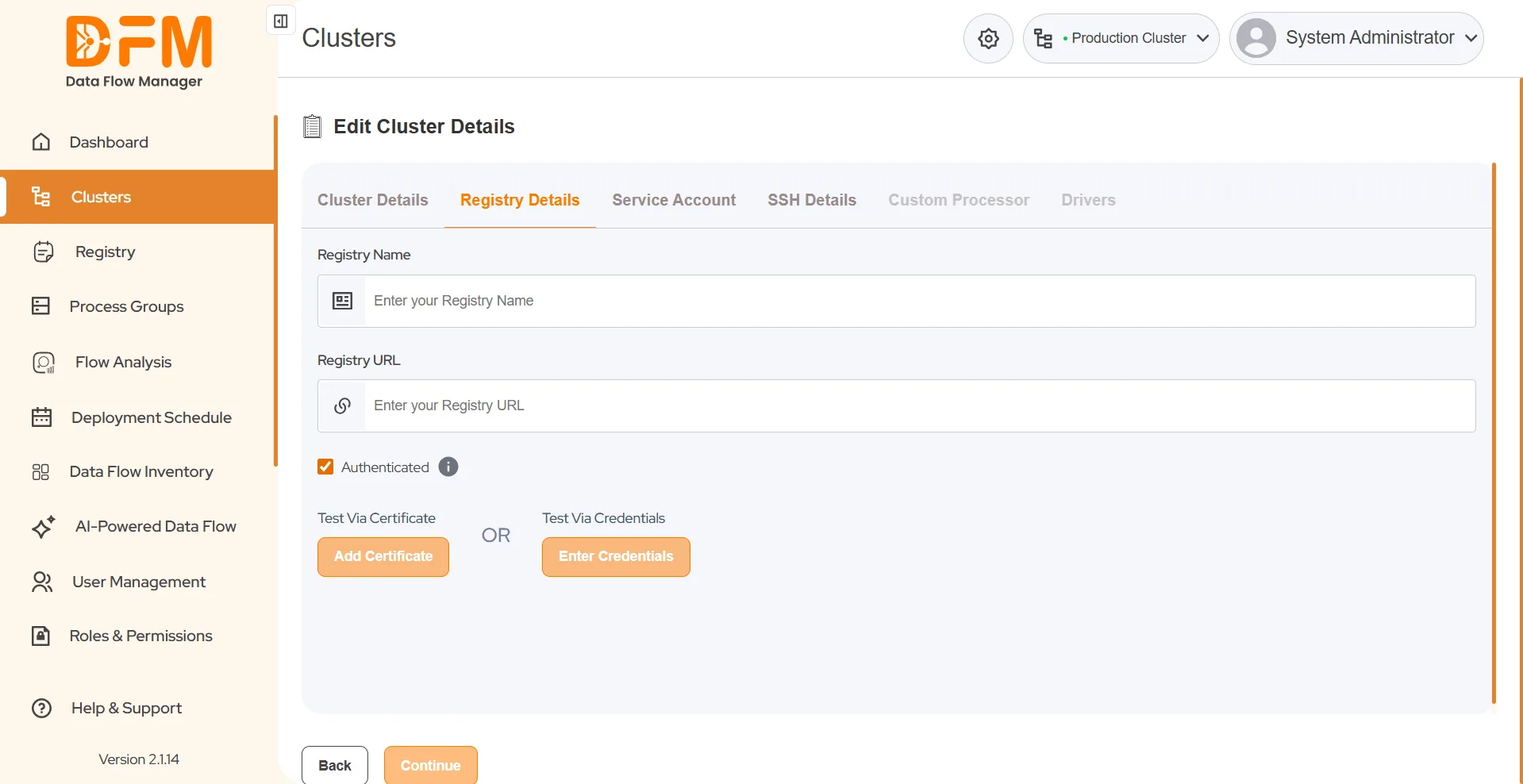
3. Choose Registry Type
- For Unauthenticated Registry:
- Uncheck the Authenticated checkbox.
- Enter the Registry Name and Registry URL.
- Click Continue, the registry will be added.

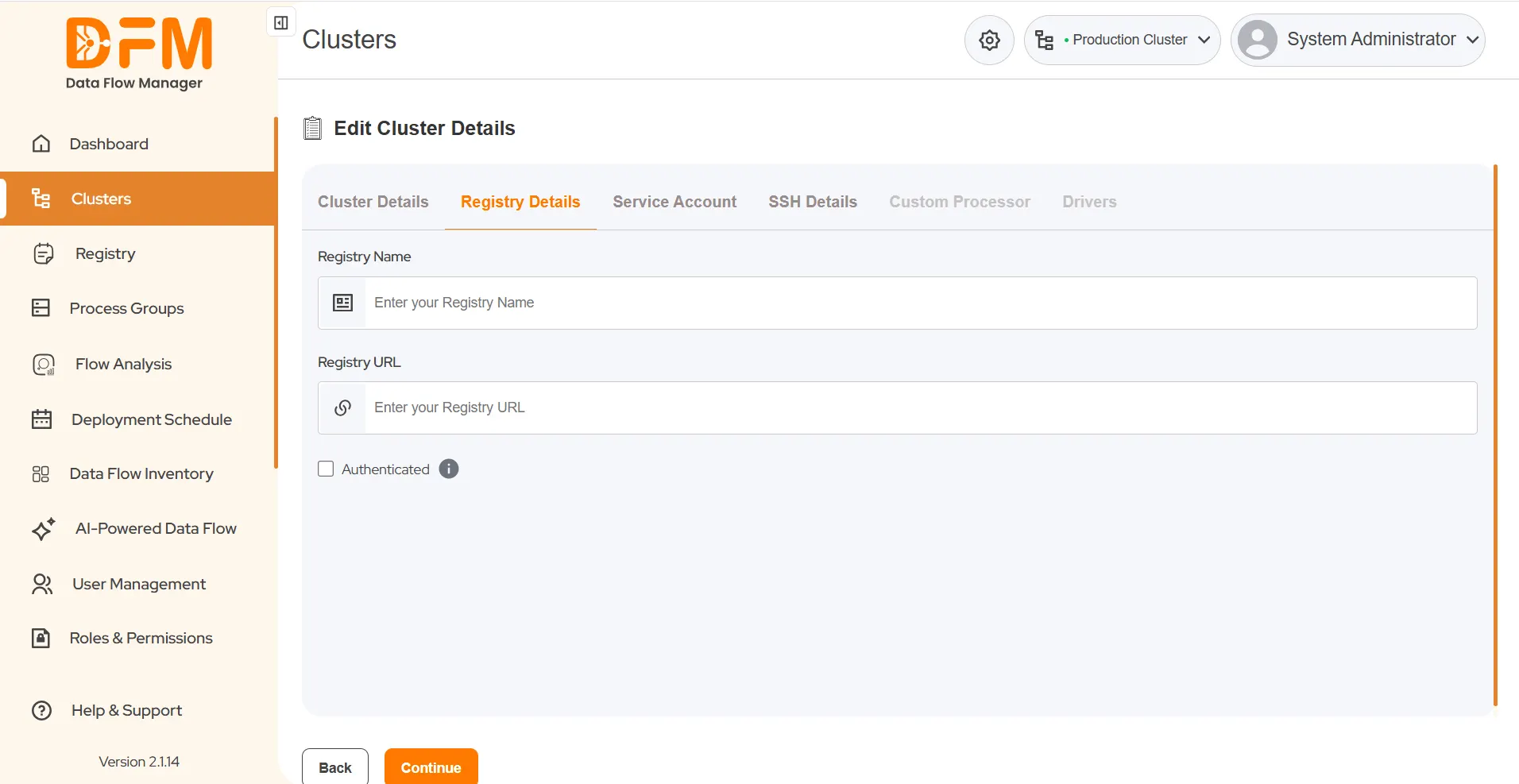
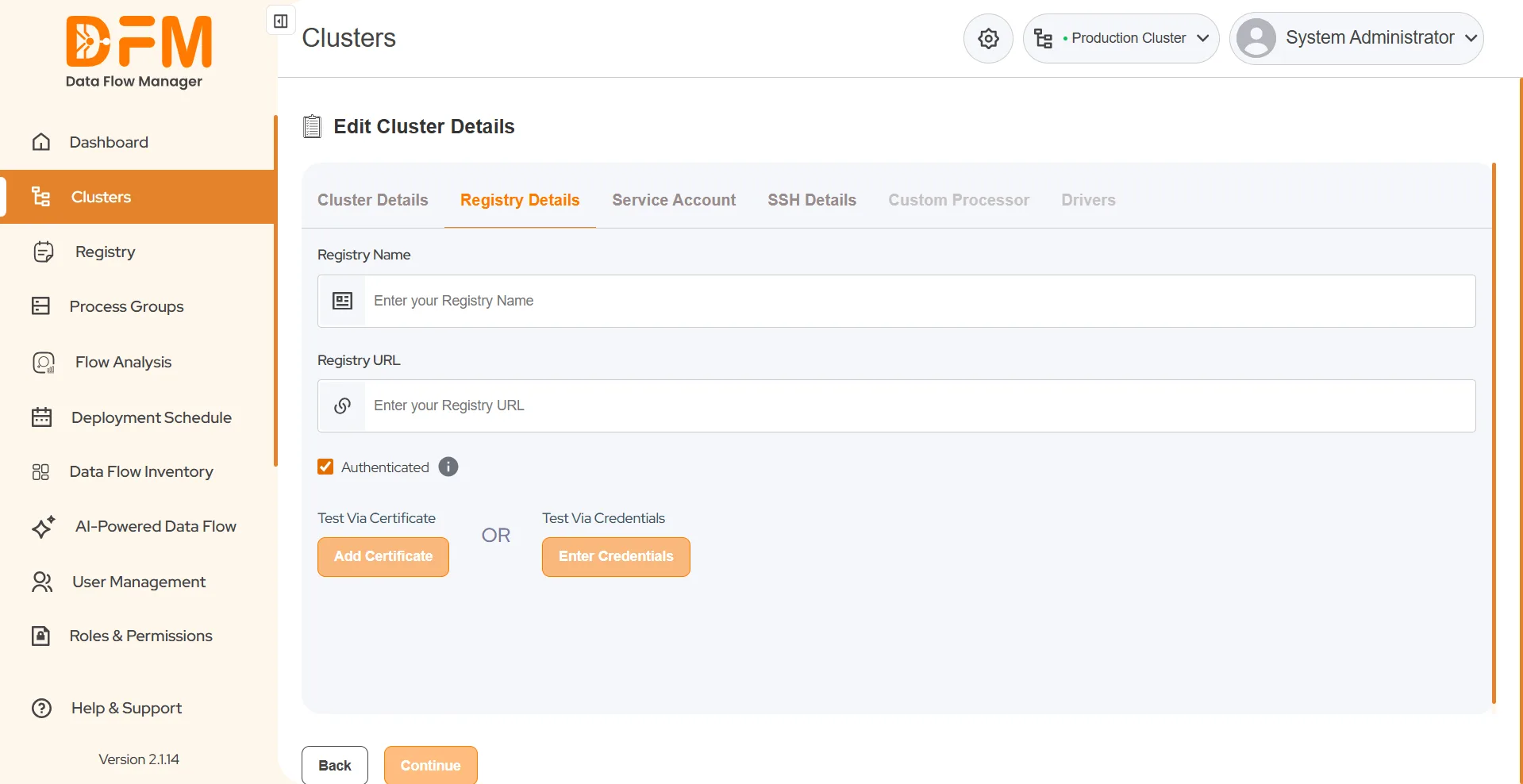
- For Authenticated Registry:
- Ensure the Authenticated checkbox is selected.
- Enter the Registry Name and Registry URL.
- Choose one of the following methods to authenticate:
- a. Add Certificate
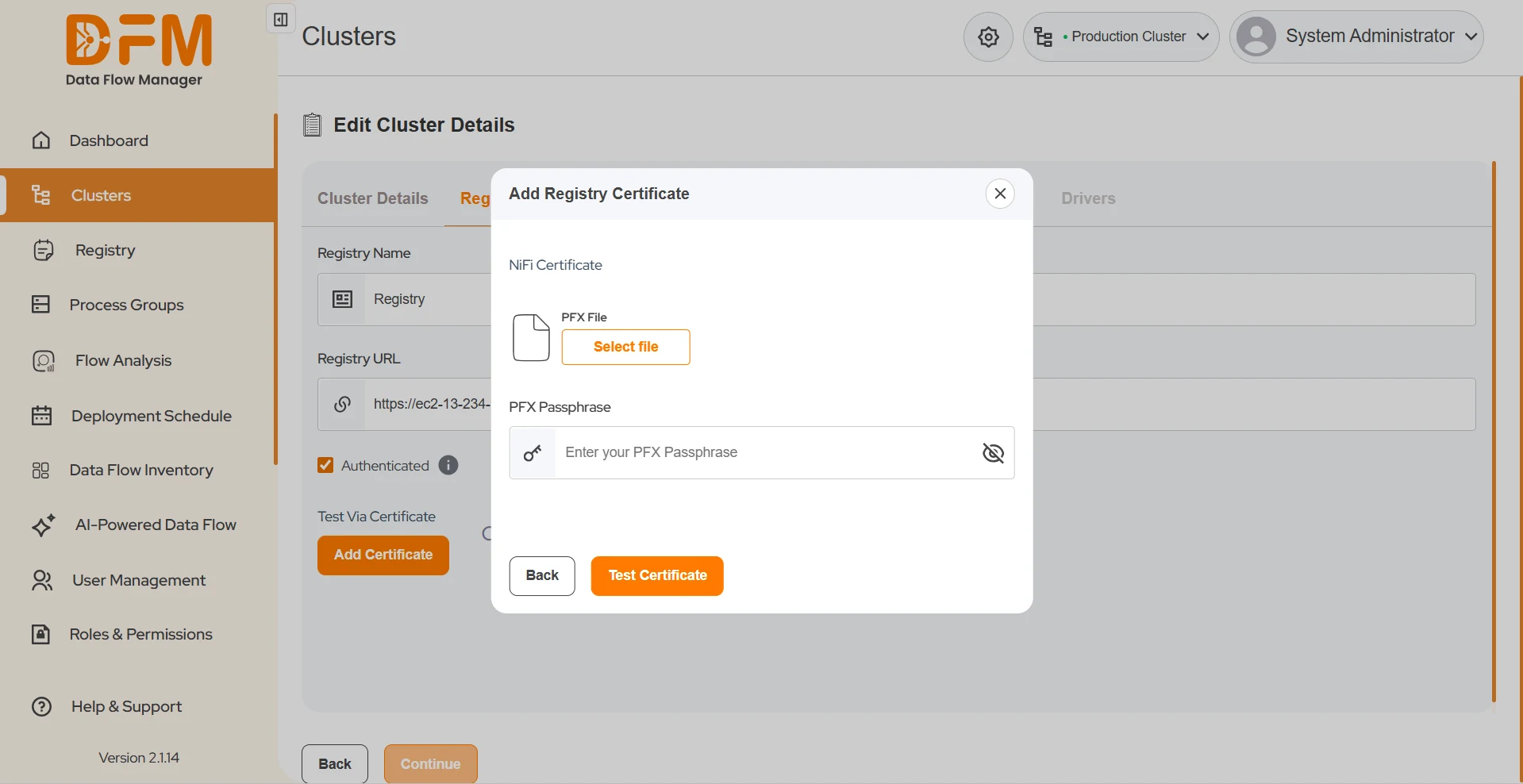
- Click Add Certificate.
- The Add Registry Certificate modal appears.
- Upload your Keystore file and enter its password.
- Click Test Certificate.
- If the validation succeeds, click Continue to save.

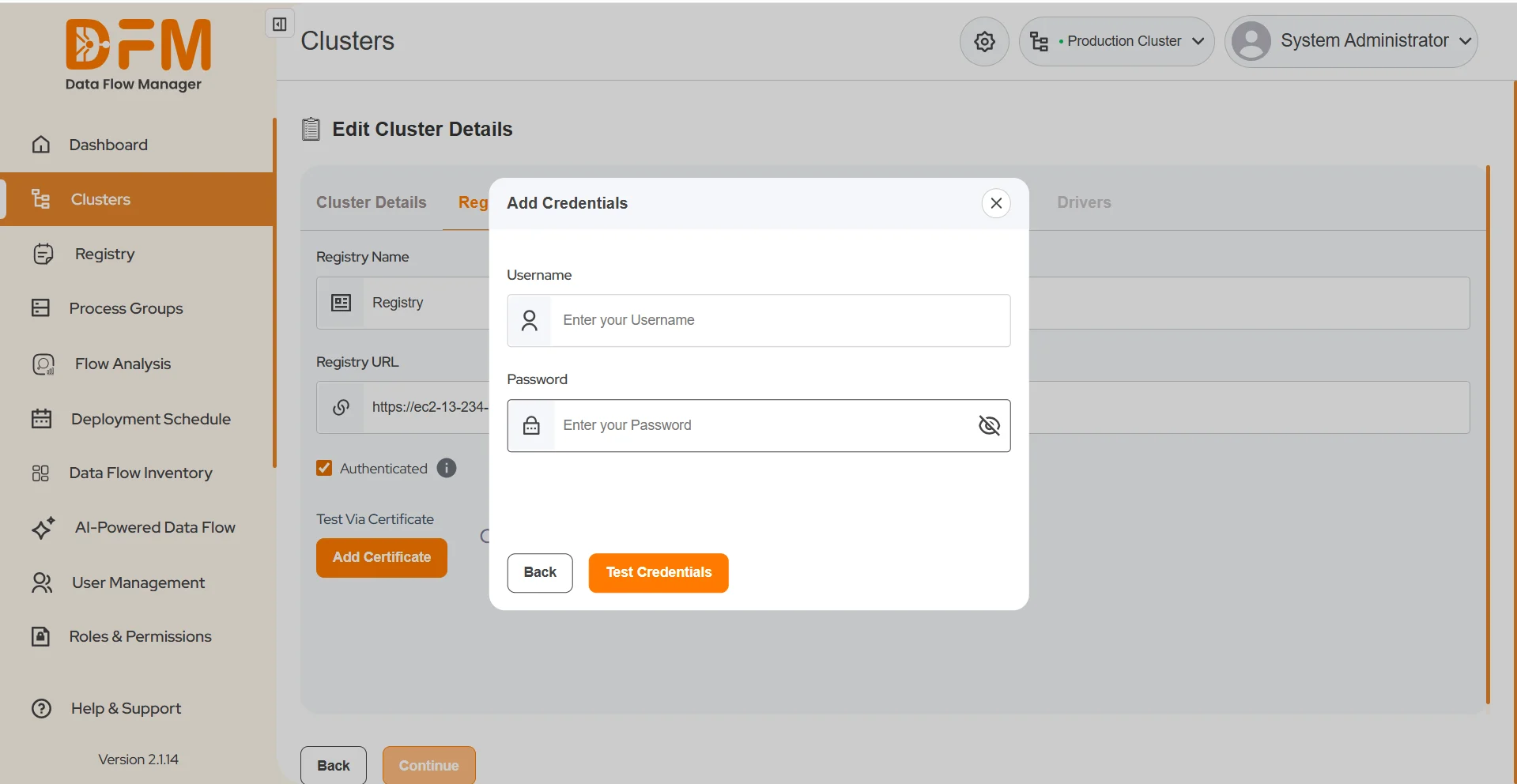
- b. Enter Credentials
- Click Enter Credentials.
- The Add Credentials modal appears.
- Provide Username and Password.
- Click Test Credentials.
- Once verified, click Continue to save.

- a. Add Certificate
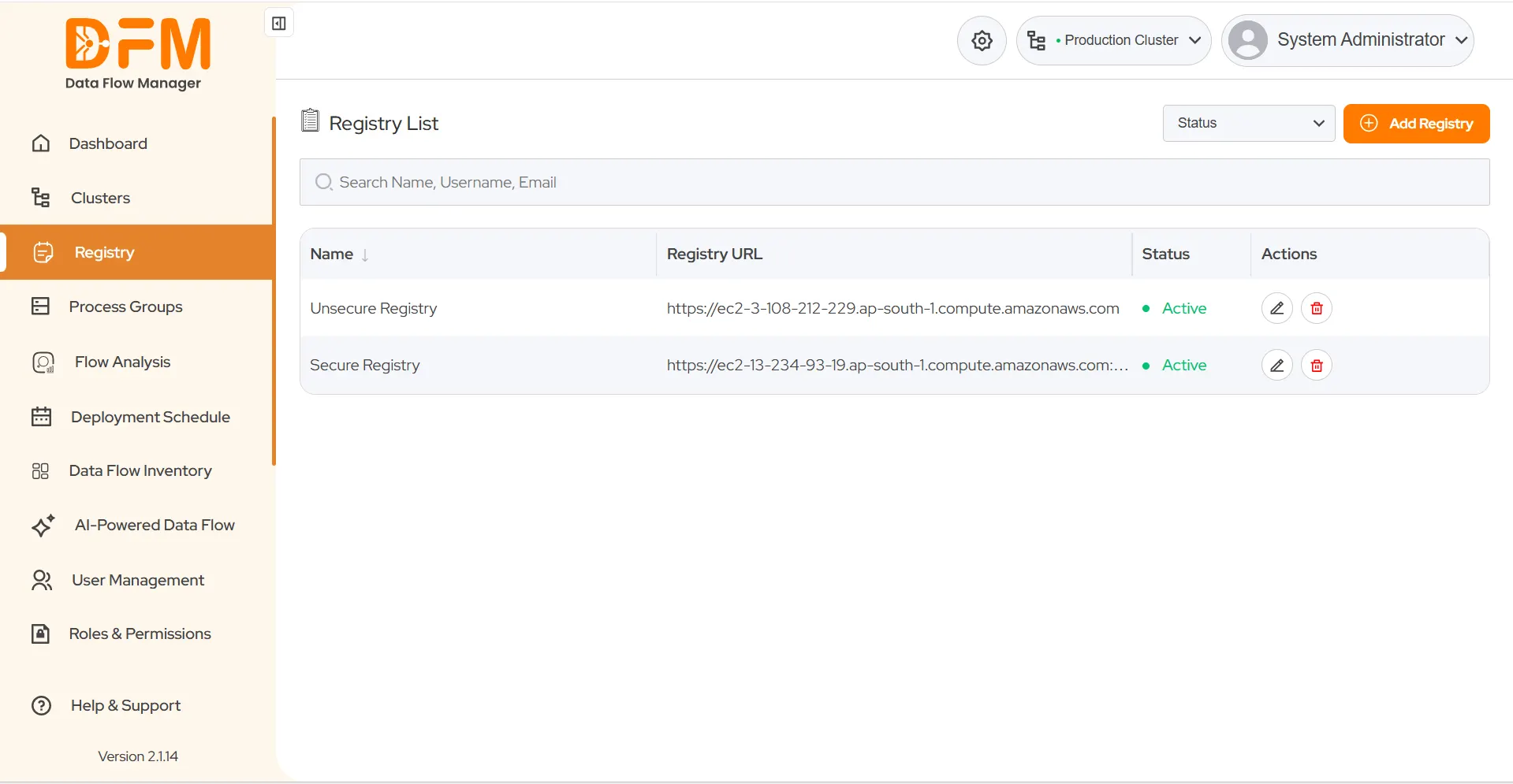
4. You can list all existing registries configured in DFM, in the Registry Modal Page. In the image below, the Unsecure Registry is added via Cluster and Secured Registry is added via Registry Modal.
 1800 121 0218
  +1 (646) 203-1075
  +91 8527471031
 sales@ksolves.com